
PacKit offers built-in support for digitally signing the packages using Artifact Signing or a Certificate from the Store. To configure the digital signature settings go to Left Menu and click on Digital Signature button:
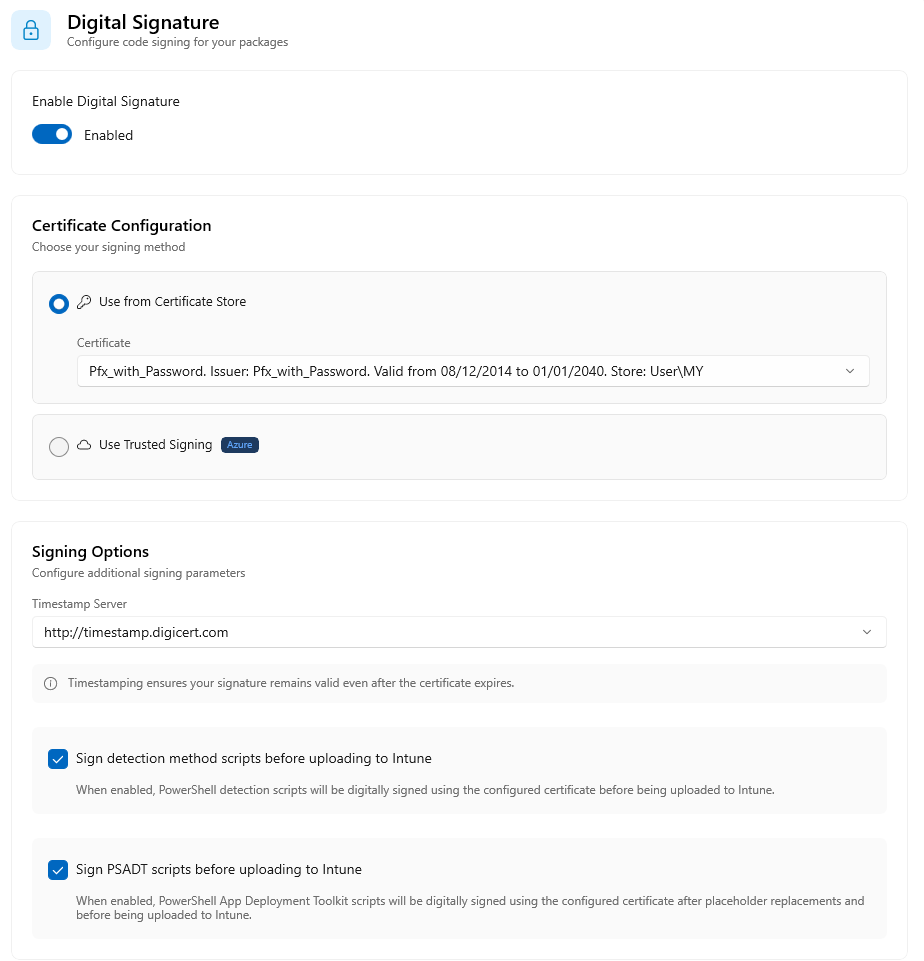
Use from Certificate Store
If you want to sign with a certificate from the Certificate Store of your computer, select the Certificate from the list. PacKit will scan your OS for suitable code signing certificates.
Use Artifact Signing
To use Artifact Signing, select the option and configure signing:
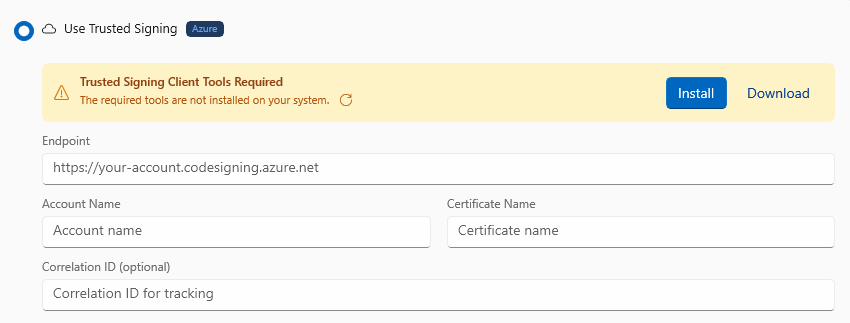
End Point
Specify a URI value that aligns with the region your Code Signing Account and Certificate Profile were created in during the setup of these resources.
Account Name
Specify the Code Signing Account name.
Correlation ID
In this optional field, you can specify an opaque string value that you can provide to correlate sign requests with your own workflows such as build identifiers or machine names.
Signing Options
Timestamp service URL
A digital certificate has a validity period. After that period expires the signed code is not considered certified anymore. To prevent that a timestamp can be placed at the signing time which will show that the certificate was valid when the signing was done.
The “Timestamp service URL” specifies the URL of the timestamp server.
Sign Detection Method scripts before uploading to Intune
When enabled, the PowerShell detection scripts configured for your application will be automatically signed using the configured certificate, before being uploaded to Intune.
Sign PSADT Scripts before uploading to Intune
When enabled, the PSADT script from your package will be digitally signed using the configured certificate before being uploaded to Intune.
