
These buttons, displayed in the top part of Package Information View, enable certain actions for the selected package:

Update from disk
Click on this button to manually update the application by picking the new package from the disk.
Upload to Intune
Upload the package to Intune.
For .msi and .msix packages there are two options for uploading to Intune:
- LOB – Line of Business – uploads the package as it is
- Win32 – Automatically generates the .intunewin file and uploads it to Intune
For .exe packages and PS1 scripts, you must upload the packages as a Win32 application. The .intunewin file will be generated automatically every time you start an upload and it will include all the files and folders located next to your installer file, as listed in the Resources group.
For PSADT files the Win32 deployment is used; thus, an .intunewin file will be created before the package is uploaded.
The .intunewin file will include all the files and folders found in your PSADT folder, as listed in the Resources group.
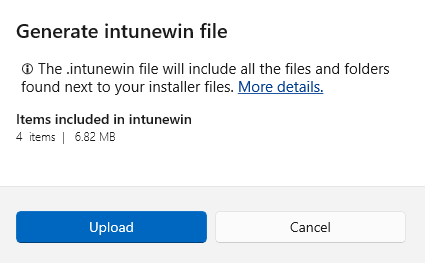
The Upload prompt contains the folder size and number of files included in the .intunewin file – to help avoid cases where more files are accidentally included:
For Intune packages, you can also manage their assignments from the App Assignment tab. This app assignments support will be soon extended to support MECM packages too.Upload to MECM
Upload to MECM
Upload the package to MECM. All the package information except the App Assignment and the detection method configuration will be uploaded onto your MECM server. After the package has been uploaded, you need to assign it to the desired user groups from your MECM console.
Unwrap PSADT
Click on this button to perform the unwrapping operation for your package. This will permanently delete the PSADT script from the disk.
