
Operating System Configuration
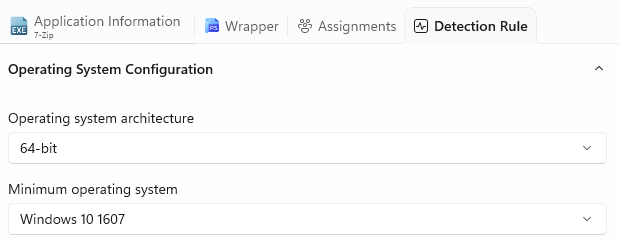
Operating system architecture
Specify the required OS architecture:
- 32-bit
- 64-bit
- 32/64-bit
Minimum operating system
Specify the Minimum OS version.
Detection Method
In this section, you can configure the Intune Detection Rules for the package. You can specify a custom script, file path, registry, or MSI product code.
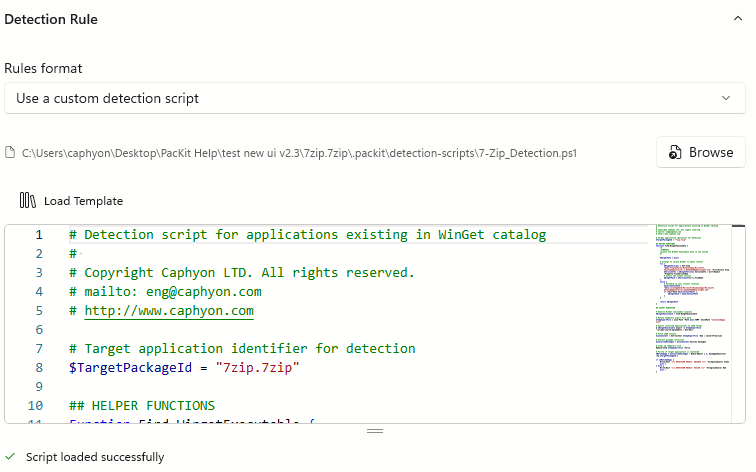
Rules format
The rules for detecting the presence of the app can be established in the following way:
- Use a Custom Detection Script – you can use one of our default Template script files (either for WinGet or for generic EXE files) for the app presence detection rules using Load Template button. You can also use our built-in editor to enhance it. The scripts return “0” for success and “1” for failure. To use your own custom script, click on Browse button and pick the file from disk.
- Manually configure detection rules – specify the Rule Type :
We recommend encoding your script as UTF-8 BOM. When the script exits with the value of 0, the script execution was successful. The second output channel indicates that the app was detected. STDOUT data indicates that the app was found on the client. We don’t look for a particular string from STDOUT.
Rule type
1. MSI – specify a MSI Product Code
2. File – specify the Path, File or Folder name and Detection Method
File Detection Methods:
- File or folder exists
- Date modified – specify Operator and Value
- Date created – specify Operator and Value
- String (version) – specify Operator and Value
- Size in MB – specify Operator and Value
3. Registry – specify a registry Key Path, Value Name and Detection Method
Registry Detection Method
- Key exists
- Key does not exist
- String comparison – specify Operator and Value
- Version comparison – specify Operator and Value
- Integer comparison – – specify Operator and Value
.
