
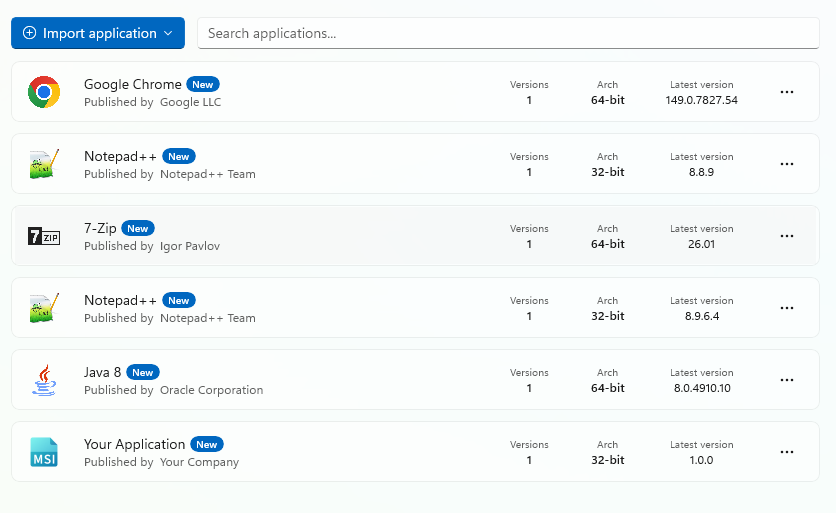
Add packages to your workspace
To add a package, just click on [Import application] button. There are five options:
- Import from disk – pick a folder from your local drive containing any package type (eg. .msix, .msi, .exe, .msixbundle, or ps1)
- Import from catalog – choose a package from the WinGet Catalog
- Import from MECM
- Import from Intune
- Import from csv file.
The catalog currently uses the WinGet gallery as the main source for download URLs. These packages are downloaded directly from the URL found in the package manifest of the WinGet repository; most of the time this URL points to the original vendor download location.
PSADT (version 3.x) packages can also be imported with Add from disk option in a very time-efficient manner. A new entry in the workspace will be automatically populated with the package info, ready for deployment. With one-click, you can generate an intunewin and upload it to your Intune tenant, eliminating the need for manual copying of your package details
Our Import from csv file feature helps migrate packages from SCCM to Intune easily. Just export your SCCM packages as .csv file and import it to PacKit and all your apps will be added to your workspace. Intune deployment is then one click away! For more information regarding .csv file import see our dedicated how to article.
Clone a package to add a new version
With this option, you can easily update a custom package from your workspace (Winget packages be automatically updated by PacKit); just right-click on a package in the list → select “Clone” from the context menu and pick the new version of your package:
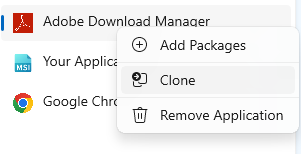
The package will be duplicated in your workspace, including its description, icon, command lines, user assignments, and detection criteria from the previous application, providing one click to Intune deployment.
A future version of PacKit will include an additional download source, with packages handpicked and vetted by our team. This new repository will also include additional package configurations, recommended for enterprise deployment. If you are looking for any specific package or configuration, please email us or submit a ticket to our Community area.
