
The Advanced view allows you to configure advanced deployment behavior for your Intune application package, including Role-Based Access Control (RBAC) visibility via Scope Tags and custom installer exit code interpretations.
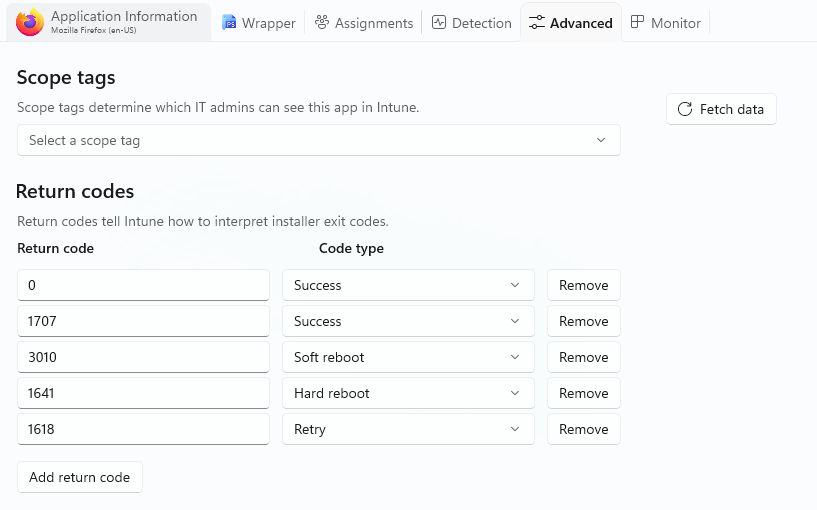
Scope tags
Scope tags determine which IT administrators can see and manage this application package within Microsoft Intune.
Configuration Options:
Click on Fetch data button to query your Microsoft Intune tenant and refresh the list of available Scope Tags.
Use Select a scope tag to select tags retrieved from your Intune account to assign to this application.
Return codes
Return codes tell Microsoft Intune how to interpret the exit codes returned by the underlying installer executable upon completion.
Intune uses these return codes to determine whether the installation succeeded, requires a restart, failed, or should be retried automatically.
Return Code: Enter the numerical exit code returned by the installer executable (e.g., 0, 3010, 1618).
Code Type: Map the specific return code to one of the following Intune interpretation types:
- Success: Indicates the application was installed successfully without requiring further action.
- Soft reboot: Indicates a successful installation, but a system restart is required to finalize changes. Intune will notify the end user.
- Hard reboot: Indicates a successful installation requiring an immediate system restart.
- Retry: Indicates a temporary failure during installation. Intune will attempt to re-run the installer.
- Failed: Indicates an unsuccessful installation attempt.
Remove Button: Click to delete a custom or default return code mapping from the list.
Add Return Code Button: Click to create a new return code mapping row.
