
This feature makes migration from MECM to Intune much easier and time-efficient by connecting to your MECM account and providing an import to PacKit option for your MECM packages. Once added to your workspace, they can be uploaded to Intune with one click.
To import your packages from MECM, just open your workspace, go to Left Menu, click on [Add..] button and select Add from MECM option.
MECM Connection
The first step in the process is to establish a connection with the MECM server:
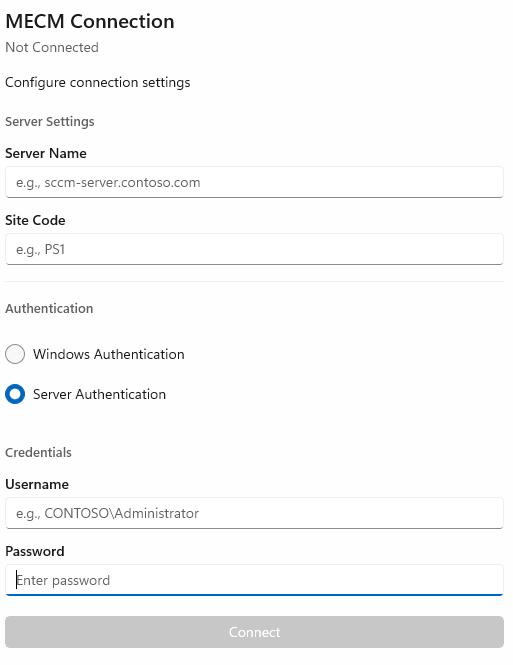
In the MECM Connection view you can configure the connection settings:
Server settings
Server Name
Specify the MECM Sever Name.
Site Code
Specify the MECM Site Code
Authentication
Authentication:
- Windows Authentication
- Server Authentication
Credentials
Username
Specify your MECM username.
Password
Specify your MECM password.
Connect
Click on this button to connect to the above MECM server.
MECM Applications
Once the connection with the server is established, a view with all the packages from your MECM account will be displayed:
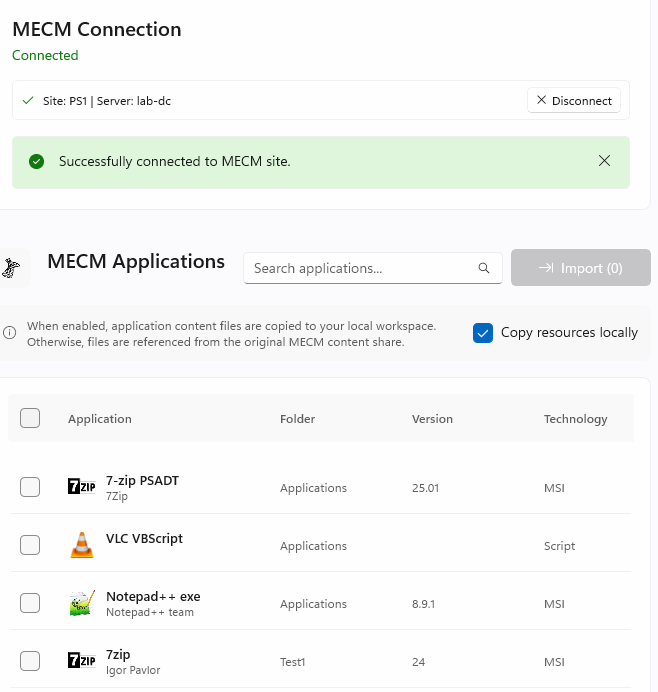
Search applications…
Use this field to filter the applications list according to your keyword.
Import
Click on this button to import the selected packages in your workspace.
Copy resources locally
Check this option to copy application files to your local workspace when the import operation is performed. If disabled, the files are referenced from the MECM content share.
Application list
This list will display the following information regarding your MECM packages:
- Application
- Folder
- Version
- Technology
