If you’ve ever packaged and deployed Win32 applications in Intune, you’re already familiar with the groundwork, such as converting your installer into a .intunewin file, figuring out the right silent install parameters, writing detection rules that won’t give you false positives, and then pushing everything out and hoping for the best.
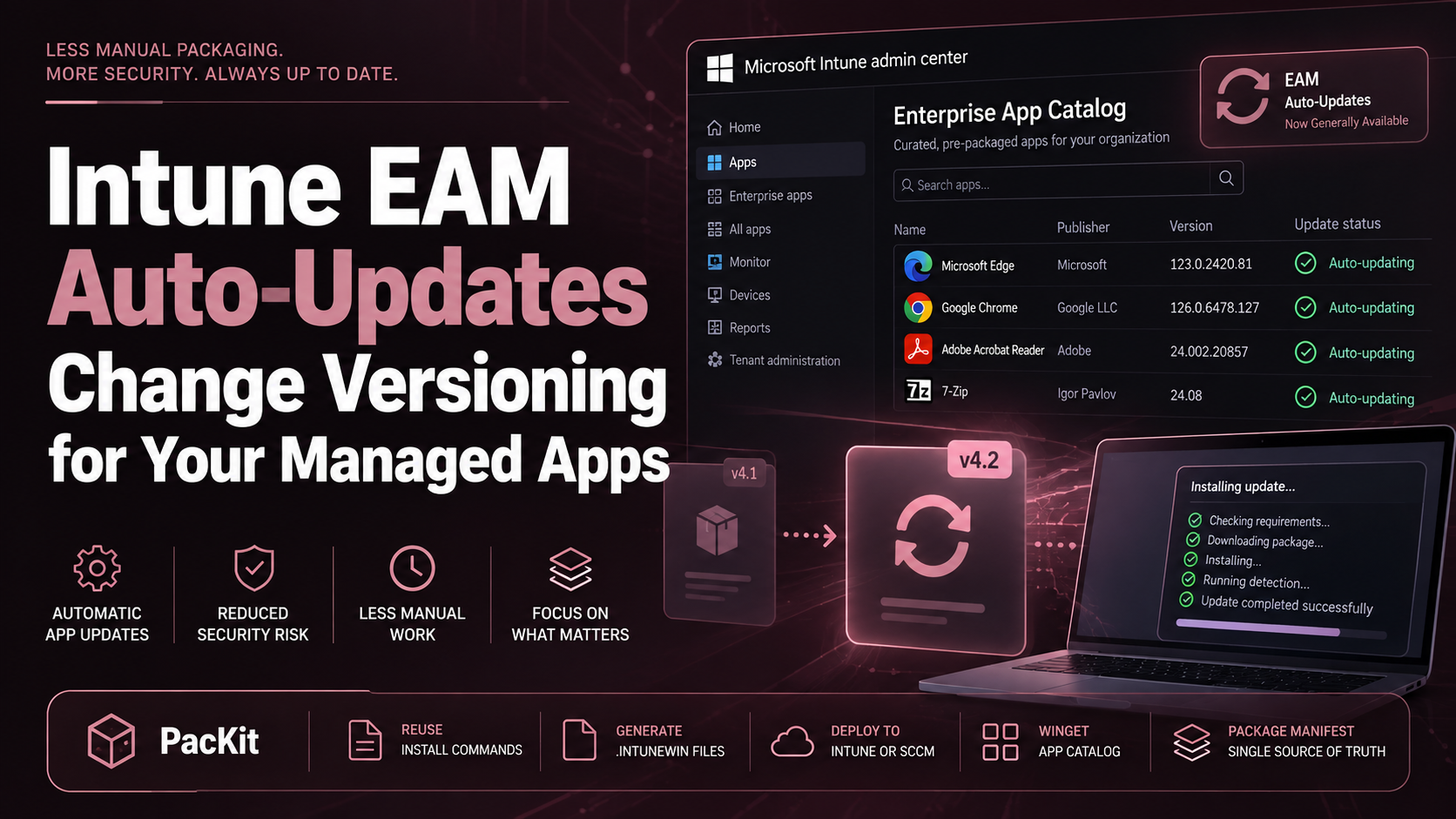
We’ve previously covered the packaging side of things in detail, and if you’re looking for a tool that takes most of that manual work off your plate, PacKit by the Advanced Installer team is worth considering.
Even if your packaging is flawless, Intune has a way of making you stare at the “Pending” status for longer than feels reasonable.
What is worth understanding is that most of the waiting is structural, and it is how Intune was designed to work. Once you understand the mechanics, you can make smarter decisions about when to wait, when to troubleshoot, and where you do have some control. So, in this article, let’s try to understand that.
Why Doesn’t Intune Feel Instant?
Intune is an MDM solution that operates on a polling model. The devices in your infrastructure don’t receive commands the moment you click on “Save” in the Intune portal. Instead, they do so on a schedule, and the service pushes updates down during those check-ins.
Under normal conditions, the check-in cycle for Windows devices running the Intune management Extension (IME) happens roughly every 60 minutes under normal circumstances.
For newly enrolled devices, the cadence is slightly more aggressive at first because the device is constantly checking for different policies and settings that must be applied, but once everything has been set and the device is deemed “synced”, then it settles down back to the 60 minutes mark.
This means that if a device completed a check-in ten seconds before you assigned an application, it will not be aware of that particular app assignment for at least an hour.
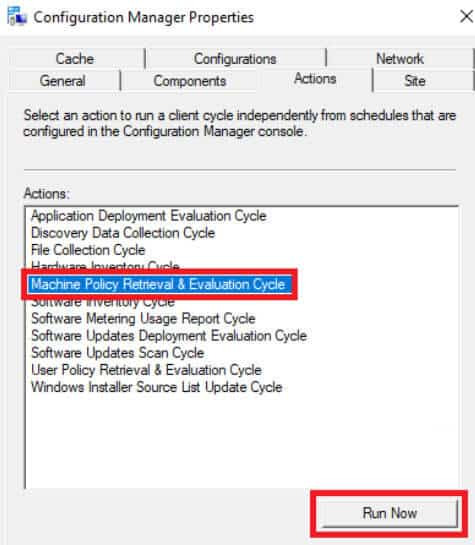
This is fundamentally different from how on-premise tools such as SCCM work, as SCCM allows you to send a machine policy retrieval request and have the client act almost immediately.
Intune lacks this feature as well as a native push mechanism for most operations, with the exception of wipe commands. This is why the “it’ll get there eventually” mindset persists, but it is appropriate for routine deployments.
There is another layer to consider: group membership resolutions.
If you use dynamic groups to target your applications, the device must first be evaluated and added to that group before Intune will determine whether it should receive the app assignment.
Dynamic group updates in Entra ID can take anywhere from a few minutes to several hours depending on the tenant size and the complexity of the membership rule.
Filters, by contrast, are evaluated at the time of policy application rather than pre-computed, which is why many admins report faster results when using filters over dynamic groups for device-targeted deployments.
However, once the device checks in and picks up the assignments, the IME processes it and attempts to install.
“Successful” or “unsuccessful” is not the main topic here. The main topic is that after execution, this is reported back to Intune, but that reporting also goes through the same check-in cycle, so there is often a second delay between when something happens on the device and when the portal reflects it.
This is why you can see an application in the portal sitting at “Pending Install” in the Intune console, despite being installed and running on the machine itself.
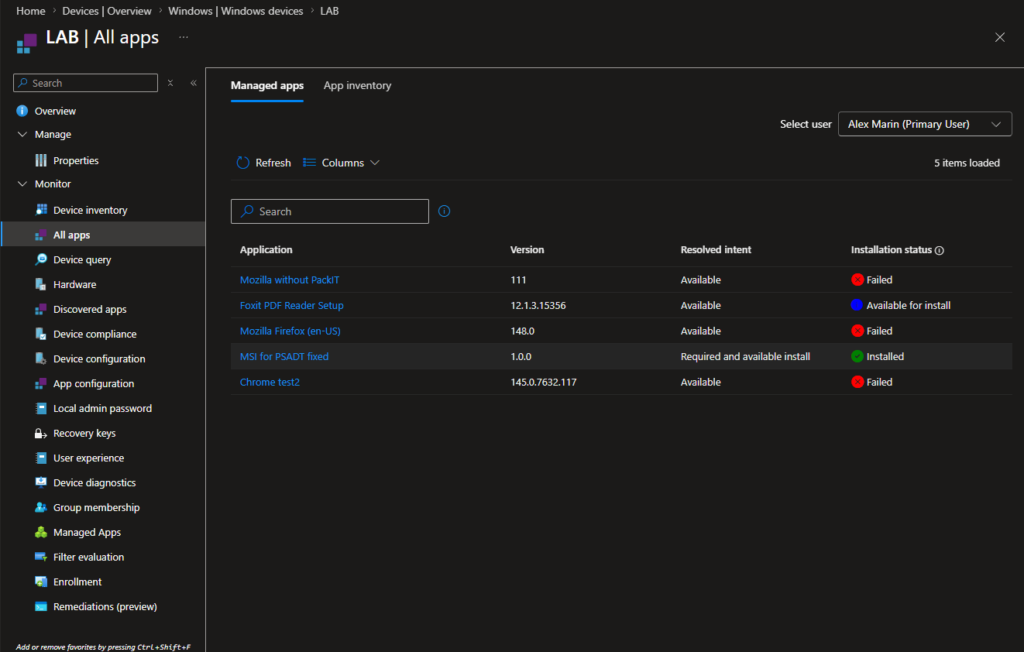
The IME’s default app check-in policy is every 60 minutes, but you can manually kick it. Running the following command on the device triggers the IME sync without waiting for the scheduled cycle:
intunemanagementextension://syncapp 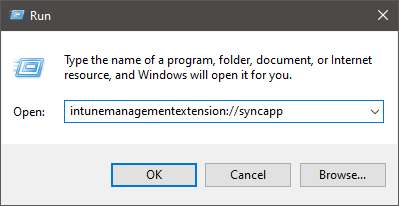
Another option is to completely restart the Microsoft Intune Management Extension service. Of course, this will reinitialize everything and also start a new sync.
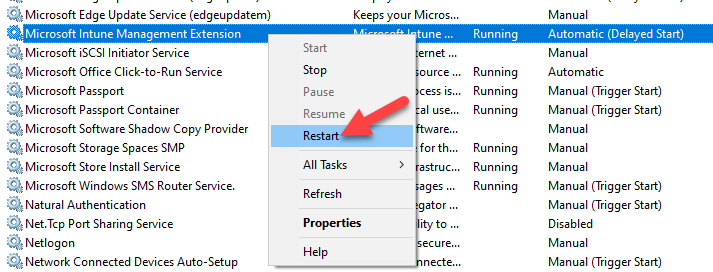
However, it is good to know that this is something useful during testing on some lab devices for faster feedback on whether your package is being picked up correctly and installed correctly. It is not a substitute for understanding the latency. You are not bypassing the system because you are simply triggering the next check-in earlier.
Going back to the original question, if Intune can be made faster, the honest answer is no, because this was the original design of Intune. You should not compare it with any other on-premise solutions.
You can reduce the number of variables that add unnecessary delay on top of the structural latency, as mentioned with filters versus dynamic groups, the detection rules, or package reliability, but these are just some small drops in the bucket, not a full reinvention of the wheel.
Conclusion
Intune’s deployment latency is real, and it can feel deeply unreliable when you don’t know why you’re waiting.
But most of the delay is predictable: polling cycles, group resolution, and reporting lag all stack on top of each other. Understanding where each delay comes from lets you distinguish between “this is working, just give it time” and “something is actually broken.”
When you combine that with smarter targeting choices, tight detection rules, and well-tested packages, Intune becomes considerably less of a mystery, even if it never truly becomes instant.
Final Takeaways
- The devices in your infrastructure don’t receive commands the moment you click on “Save” in the Intune portal. Instead, they work on a schedule, and the service pushes updates down during those check-ins
- Under normal conditions, the check-in cycle for Windows devices running the Intune management Extension (IME) happens roughly every 60 minutes under normal circumstances.
- For newly enrolled devices, the cadence is slightly more aggressive at first because the device is constantly checking for different policies and settings that must be applied
- If you use dynamic groups to target your applications, the device must first be evaluated and added to that group before Intune will determine whether it should receive the app assignment.
- Dynamic group updates in Entra ID can take anywhere from a few minutes to several hours depending on the tenant size and the complexity of the membership rule. Filters, by contrast, are evaluated at the time of policy application rather than pre-computed
- Trigger the IME sync without waiting for the scheduled cycle with the following command: intunemanagementextension://syncapp
- Alternatively, completely restart the Microsoft Intune Management Extension service
- You can reduce the number of variables that add unnecessary delay on top of the structural latency, as mentioned with filters versus dynamic groups, the detection rules, or package reliability