If you’ve ever packaged and deployed Win32 applications in Intune, you’ve probably wondered whether a simple “File or Folder exists” detection rule is good enough or if you should also verify the version.
It sounds like a minor technical detail, but the answer has some consequences for how smoothly your application updates land across your IT landscape and how much troubleshooting time you need to invest down the road.
In this article, let’s have a look at how this works, what matters, and when each approach makes sense.
Choosing the right detection
Intune’s “File or Folder exists” detection method is the quickest way to have something configured for detections, and in some cases, it might be acceptable.
For example, if you’re deploying a VPN client and need to verify that a certificate or profile was correctly placed in a specific path, checking for the presence of that file makes perfect sense because the file either exists or it doesn’t, and we don’t need to deal with any version issues.
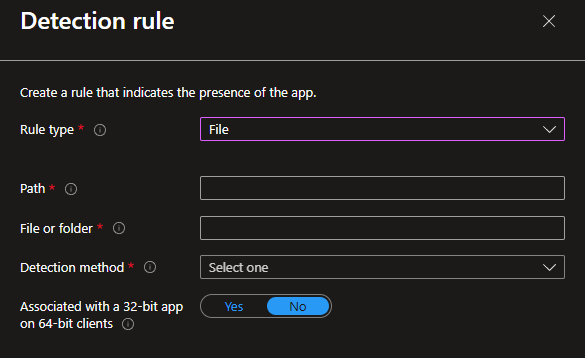
The issue arises when you use this method for an application that needs to be updated.
In general, each application has very few differences in terms of the installation location and files present, which means that if we rely solely on the “File or Folder exists” method, each application version almost has the same structure and files, so there is no reliable way to distinguish between a machine that has the old version and one that already has the new one unless your Supersedence detection is smarter than the original.
The industry has adopted a “best practice” in which version management is important and registry-based detection with version comparison is the more robust approach.
The uninstall hive in the Windows registry contains all of the application’s metadata, such as the GUID and version.
A detection rule using either the exact versions or “Greater than or equal to” against the version value in the registry gives you the flexibility to handle future updates more gracefully without retroactively tightening old packages.
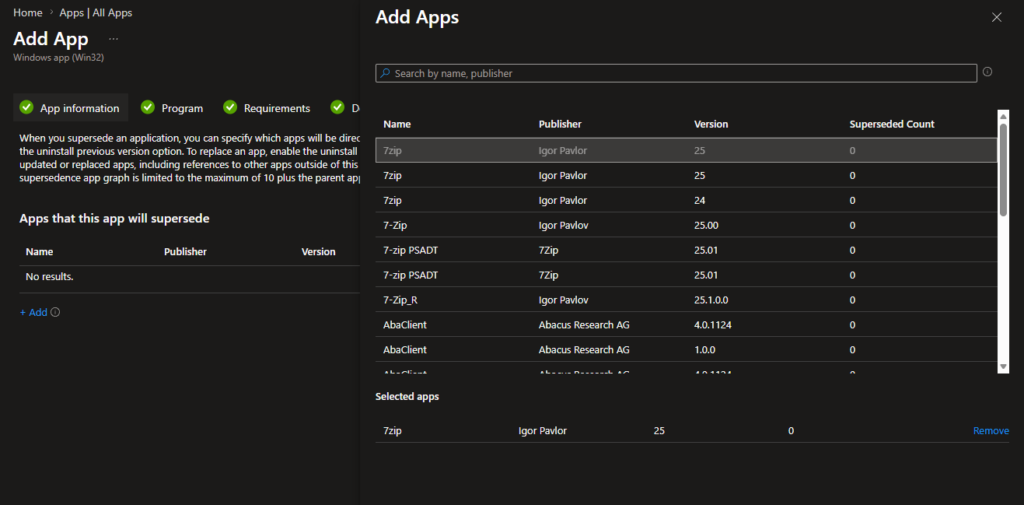
Having that said, there is one important aspect about Supersedence that is easy to get wrong.
When both old and new packages are detected at the same time, Intune correctly interprets this as the superseding application being installed, and it does not loop into an uninstall/reinstall cycle.
Some administrators make the mistake of modifying an old package detection rule after the fact to exclude the new version. This actually undermines Intune’s tracking logic and forces it to re-evaluate compliance across all devices from scratch. If your Supersedence detection is solid from the start, you won’t need to touch the old packages at all.
The best approach is not a one-size-fits-all approach because different package formats carry different types and amounts of metadata that can be used.
MSI packages are the most straightforward case because they write structured data to the registry during installation, such as a product code and version string. Detection based on the product code or version from the uninstall hive is easy to configure and highly accurate.
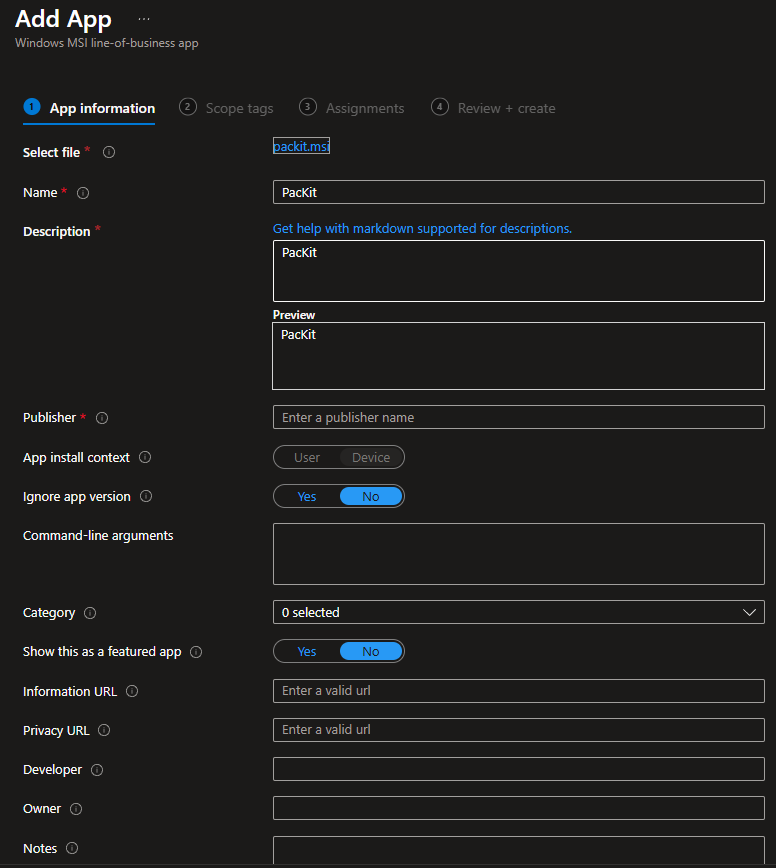
MSIX packages are handled differently because MSIX has its own packaging identity model, and Intune can detect MSIX applications based on their package family name, which remains stable across versions.
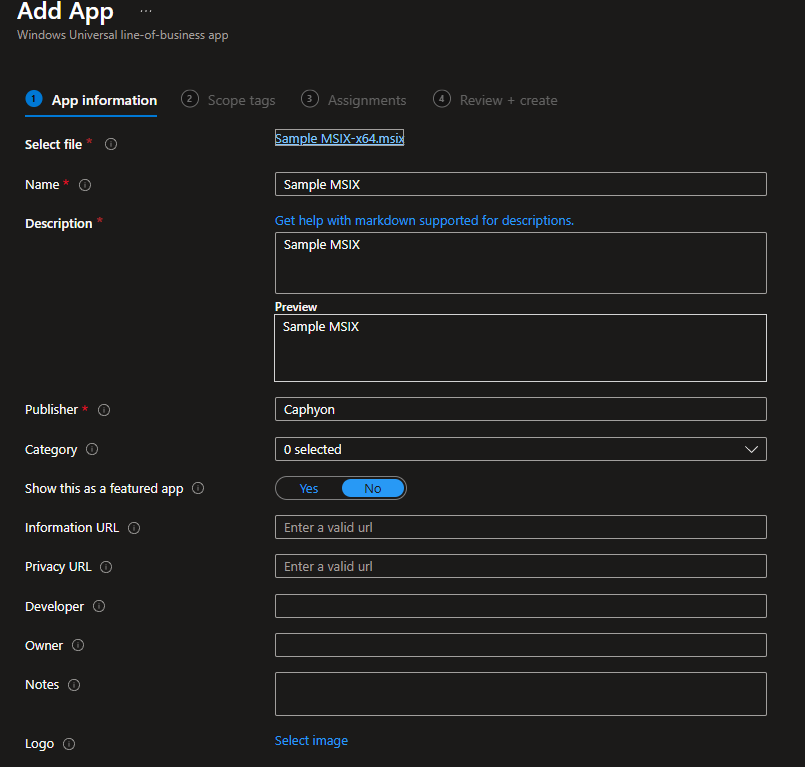
MSI and MSIX packages can also be created as Line-of-Business Applications, or LOBAs for short, which eliminates the need for detection rules. Intune sets them automatically, and you only need to configure minor details in the deployment’s metadata.
EXE-based installers are where things get a bit complicated because:
- They are inconsistent, write to nonstandard locations, or produce different registry footprint across versions
- Can only be deployed in Intune through Win32 Applications, so they have to be converted into .intunewin extension files
- The silent installation parameters are different because there are many EXE installer production solutions available on the market. If you want to read more about this, we covered it in a separate blog post.
Returning to our detection topic, this is where software packagers try to identify the best approach for detecting an EXE package. Create a custom detection script, query a specific registry path, validate a file version attribute, or combine multiple conditions.
PacKit can help you significantly reduce the number of repetitive and error-prone configurations in your process.
When you work with MSIs, PacKit automatically populates the detection rules based on the GUID.
For WinGet packages, PacKit automatically creates a custom PowerShell detection script, reducing the risk of accidentally breaking a deployment.
For EXE-based packages, the detection logic is less predictable, but PacKit supports custom detection scripts, and the tool will attempt to detect based on what it can read from the executable.
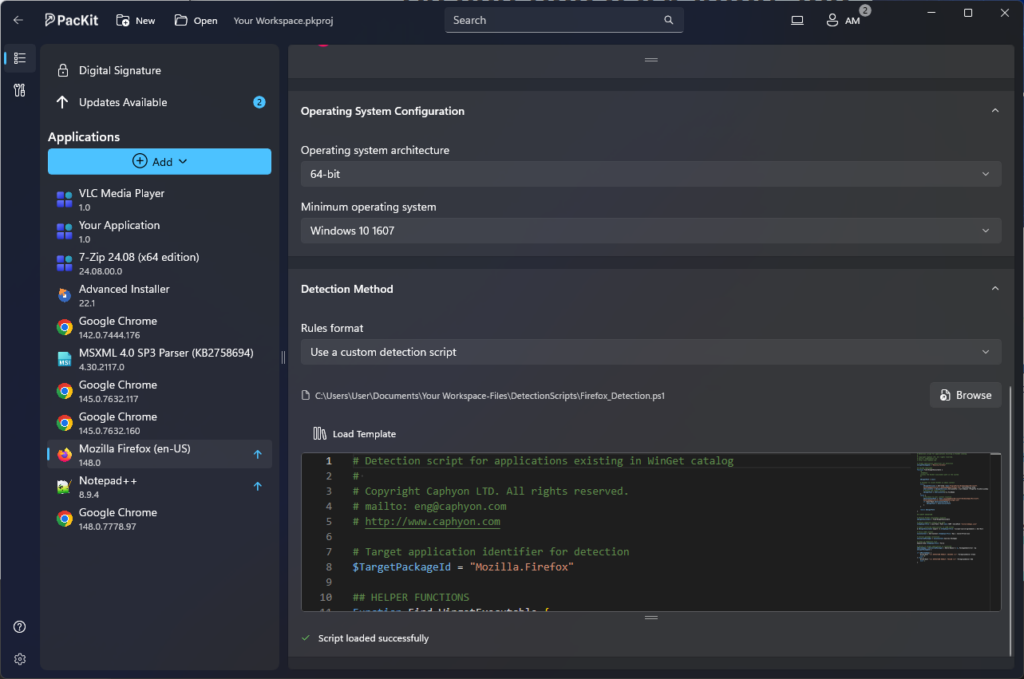
The overall value is workflow continuity.
PacKit bridges the gap between packaging and deployment by handling the .intunewin generation, the Intune upload, and the assignment targeting in a single workflow.
When detection rules are part of that same pipeline rather than a separate manual step, the chances of a mismatch between what was packaged and what Intune is checking for drops considerably.
Conclusion
Choosing the right detection logic in Intune directly influences how reliably your applications update and how much maintenance you avoid later.
Version‑based detection, especially when automated through tools like PacKit ensures consistent, predictable deployments across all package types.
By integrating detection into a unified workflow, you reduce errors, eliminate guesswork, and keep your update pipeline clean and stable.
Final Takeaways
- Intune’s “File or Folder exists” detection method is the quickest way to have something configured for detections, and in some cases, it might be acceptable.
- When both old and new packages are detected at the same time, Intune correctly interprets this as the superseding application being installed, and it does not loop into an uninstall/reinstall cycle.
- Some administrators make the mistake of modifying an old package detection rule after the fact to exclude the new version, undermining Intune’s tracking logic and forcing it to re-evaluate compliance across all devices from scratch.
- MSI packages are the most straightforward case because they write structured data to the registry during installation, such as a product code and version string.
- MSIX packages are handled differently because MSIX has its own packaging identity model, and Intune can detect MSIX applications based on their package family name. MSI and MSIX packages can also be created as Line-of-Business Applications.
- EXE-based installers are where things get a bit complicated due to their inconsistency, deployment complications and the difference in silent installation parameters
- PacKit helps by populating the detection rules based on the GUID, creating a custom PowerShell script, and supporting custom detection scripts.
- PacKit also handles the .intunewin generation, the Intune upload, and the assignment targeting in a single workflow