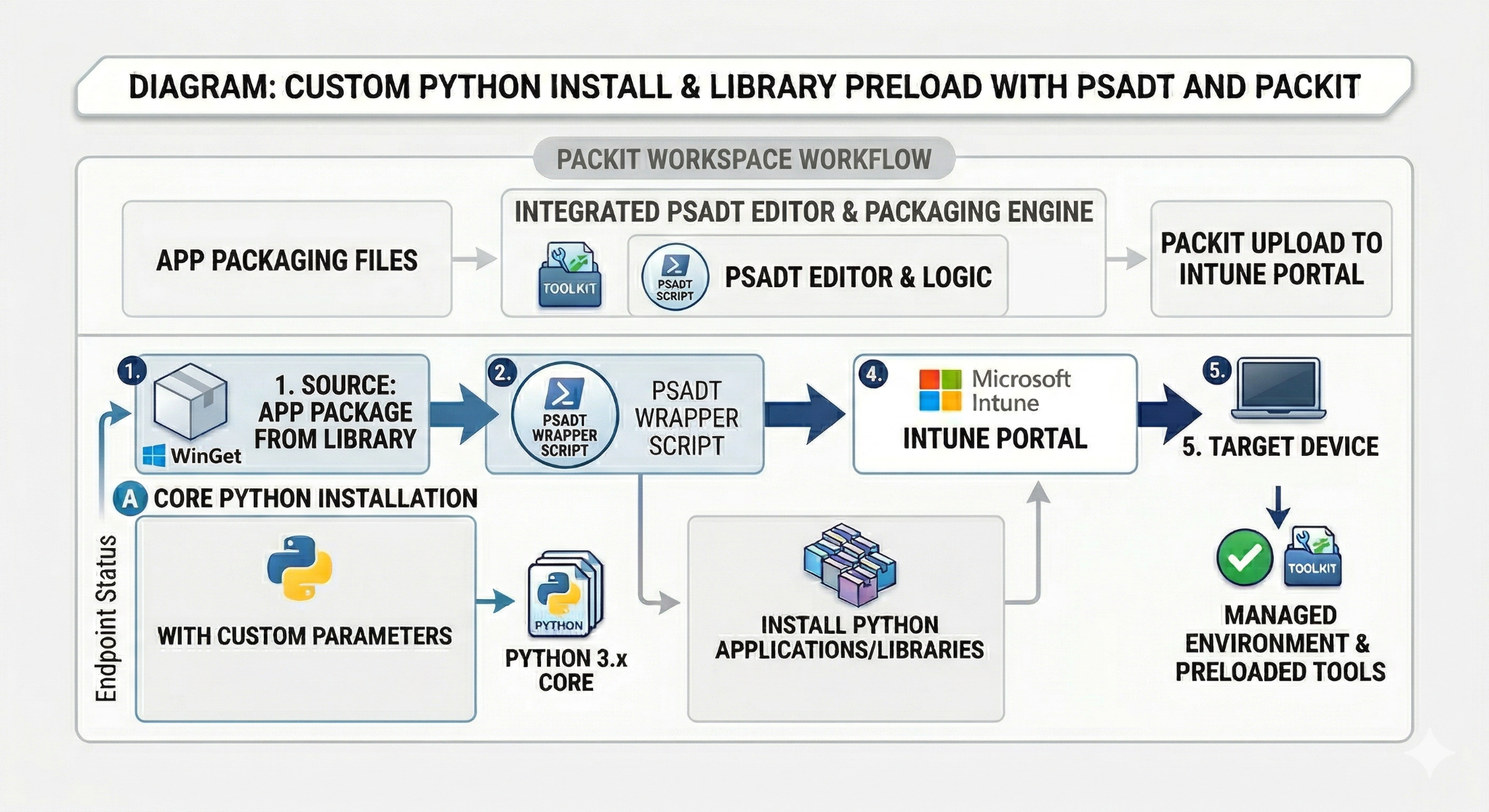
PSADT is an open-source toolkit used to simplify and standardize application deployment with PowerShell. It is widely used in enterprise environments to wrap installers (MSI, EXE, etc.) with custom logic for installation, uninstallation, and user interaction. It also comes with robust logging and error handling, as well as powerful scripting capabilities for both silent and interactive installs and uninstalls.
When using tools like Intune to deploy your applications, you must wrap your app binaries and scripts in an .intunewin file.
Here’s a step-by-step guide on how to wrap a Win32 app with PSADT and get it ready for Intune deployment:
- Download PSADT
Go to GitHub – PSAppDeployToolkit and download the latest release.
- Prepare PSADT
Place your installer in the Files folder and add any additional resources (such as configuration files) in the SupportFiles folder.
- Customize Deploy.Application.ps1
Open Deploy.Application.ps1 and change the Install and Uninstall sections to suit your needs. You can also add pre-install, post-install, and uninstall tasks if necessary.
- Wrap as .intunewin
Use Microsoft-Win32-Content-Prep-Tool to wrap your installer into an .intunewin file.
For more information on converting your installer into an .intunewin file, check out our article Free Alternative to Microsoft Win32 Content Prep Tool.
- Set up the Win32 app in Intune
Upload and configure the Win32 app in Intune.
To learn more, read this article: Microsoft Intune Apps: Line-of-Business (LOB) Apps vs. Windows (Win32) Apps
Better yet, use PacKit’s PSADT and Intune integration to wrap and deploy the Win32 software in a few clicks.
PacKit: The Easier Way
After you add your installer to the PacKit workspace, all you need to do is:
- Click on “Wrap with PSADT”
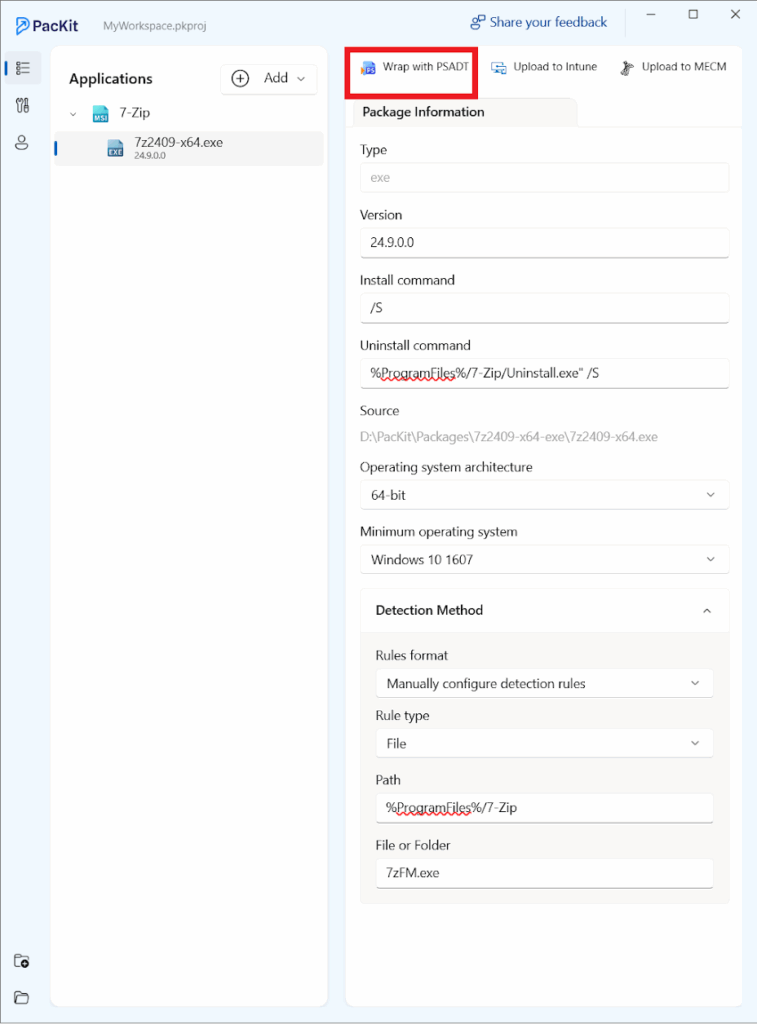
When you click the “Wrap with PSADT” button, PacKit will automatically:
- Create the PSADT folder structure
- Copy your installer to the Files folder
- Generate the metadata and install/uninstall logic
If needed, you can adjust the script by opening the PowerShell script directly from the PacKit GUI.
- Click on “Upload to Intune”
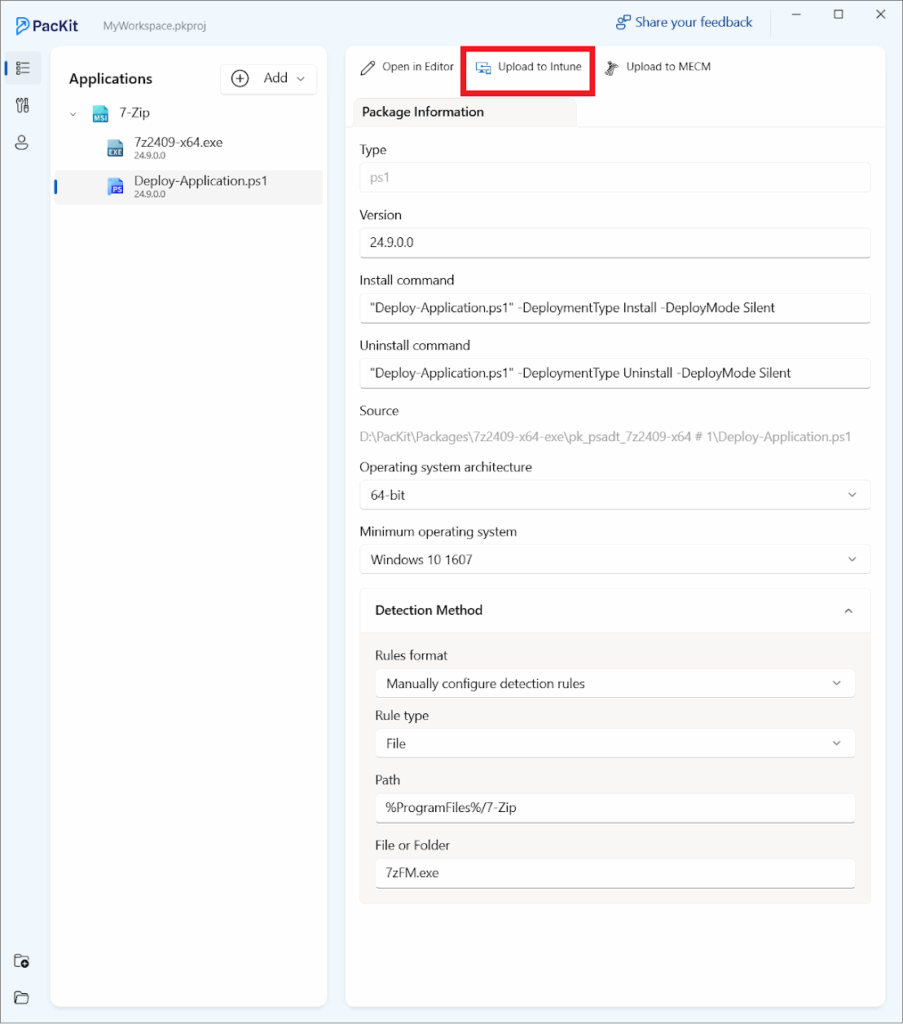
When you click this button, PacKit will automatically convert your installer into an .intunewin file and then upload it into Intune using the defined settings (install/uninstall command line, detection method, etc.).
Final Takeaways
- PSADT helps standardize installations by giving you a clean structure for install, uninstall, and user interaction while keeping everything consistent across applications.
- Always place installers in the Files folder and supporting content in SupportFiles so your script stays organized and predictable.
- After customizing the Deploy.Application.ps1 script, you must wrap everything into an .intunewin file before Intune can deploy it.
- Setting up the Win32 app in Intune requires configuring install commands, detection rules, and behavior settings to ensure reliable deployment.
- PacKit automates much of this process by generating the PSADT structure, wrapping the app, and uploading it to Intune with minimal manual steps.
Conclusion
If you understand the structure and workflow, packaging with PSADT becomes a repeatable process. Tools like PacKit can make it even faster and reduce room for error.
You can download and try PacKit for free from here.