Maintaining your infrastructure up to date, particularly in the application area, is a time-consuming process that, depending on the size of your infrastructure, requires managing application updates or even deploying new applications.
Packaging and deploying applications within Intune may be a little frustrating at first, but it takes some time to get used to. Even once you’re accustomed to it, it still consumes a significant amount of your time.
Within organizations, dedicated teams of IT professionals are constantly packaging new application updates or even new applications, depending on the demand of that particular organization and its infrastructure. As a result, everyone is always looking for any type of tool that can help them automate or simply reduce the time it takes to maintain the infrastructure.
The packaging industry has evolved tremendously over the past two decades.
We must understand that the MSI technology itself, without the tools currently available at your disposal, such as Advanced Installer, which helps you create and modify any type of MSI package through a graphical user interface, would represent a significant challenge.
So, why is that?
The MSI technology is extremely complex, and there are many rules you need to follow when creating or modifying any type of MSI package. So, without tools like Advanced Installer, it will be nearly impossible to meet the current modern deadlines that exist within today’s infrastructures.
In terms of deployment, there were fewer options and restrictions in the past, and many professionals consider the process to have been much easier than it is today. However, it is important to understand that deployment tools are evolving to add functionality that the users have asked for.
Unfortunately, as more extra functionalities are added, tools tend to become more and more complex over time. This is true not only for packaging and deploying, but for most tools that have been developed over time.
We have many posts on the Advanced Installer blog that explain how deployment works in Intune and MECM (SCCM).
One of them is A Complete Guide to Deploying Win 32 Applications via Microsoft Intune. This article explains what you need to do to get your application packaged and ready to reach out to your devices.
In this article, I’d like to go over how the process of packaging and deployment of Win32 applications in Intune works, as well as how PacKit can help you save some time within your teams.
Win32 Deployment – The Traditional Approach
The Win32 application type is the most popular type of deployment within Intune because it supports the classic apps that most organizations rely on and are familiar with.
However, if you try to deploy applications using the Win32 application type, you will need to take additional steps.
The first step, before even considering uploading your package into Intune, is to ensure your installers are in MSI or EXE format. These installers must then be converted using Microsoft’s free Win32 Content Prep Tool. After running this tool, you will have an .intunewin file, which can only be uploaded to Intune.
If you try to open an .intunewin file, you will notice it is essentially a zip file with additional files. These files help Intune detect the application type, obtain MSI product codes, and so on.
After that, you go through the standard Intune process, which includes uploading your application and going through some pages to configure detection methods, etc.
At this point, several issues with this process become apparent:
- Regardless of which application you package, you will have no information, source files, or anything else that can be pulled out of Intune to help you minimize the process.
- Intune requires multiple steps before you can even begin to upload your application.
- Once the upload is complete, you will be required to configure multiple steps of declarations for that specific application.
As you can see, the process is cumbersome, highly manual, and time-consuming. Even small optimizations could help improve efficiency.
Streamlining Win32 Application Deployment with PacKit
This is the part where PacKit comes into play.
One of the first things to notice about PacKit is its WinGet integration.
If your application is found in the WinGet repository, PacKit can pull it automatically. All relevant command lines, such as installation command lines, uninstallation command lines, and more will be pulled along with the application.
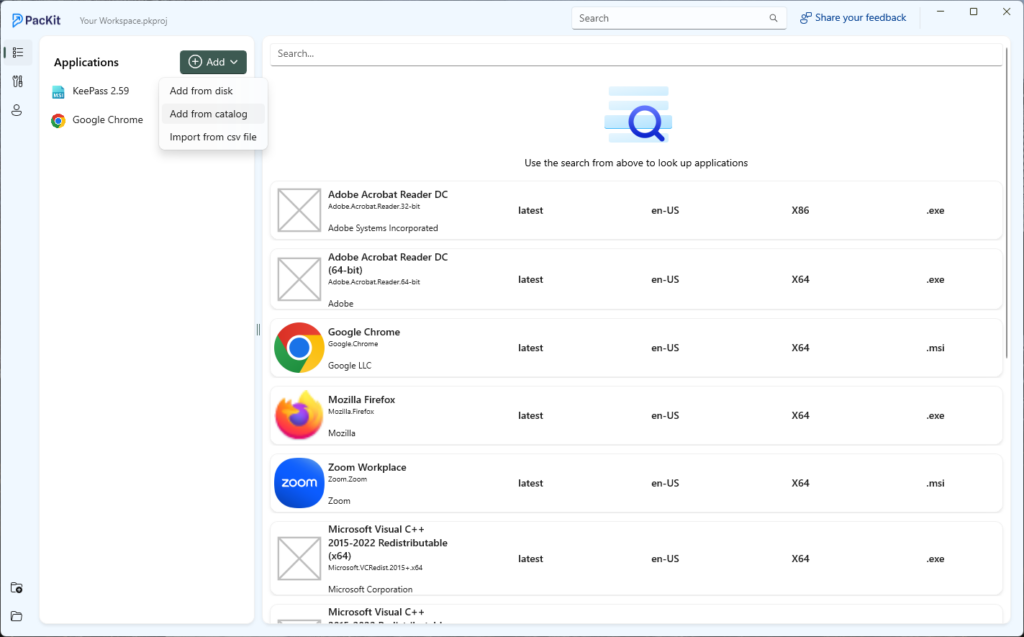
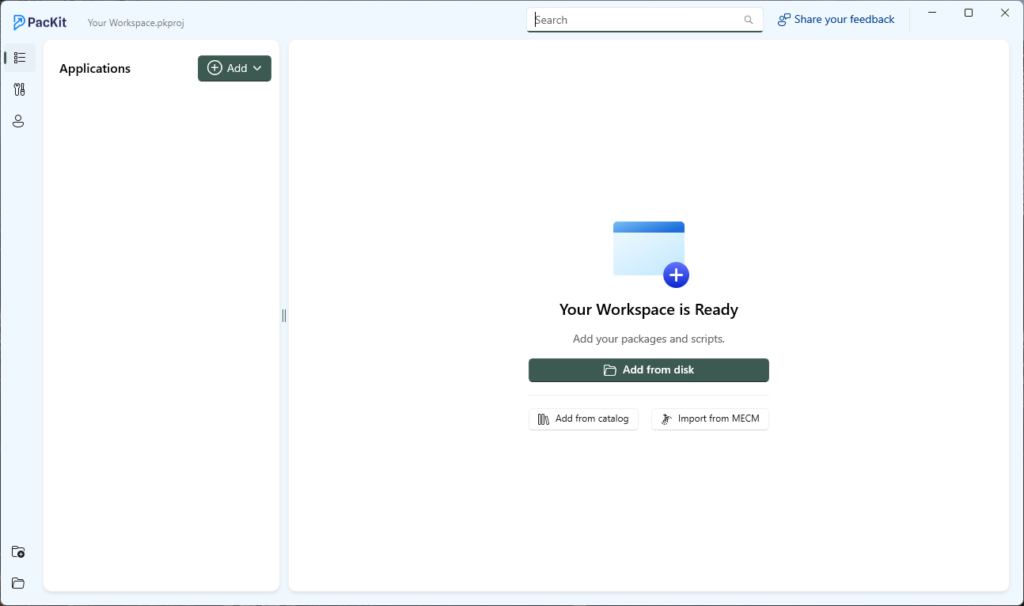
Another key feature is PacKit’s workspace functionality.
Within the workspace, you can have one single application, for example, Firefox, and continue building on it with each new version released. Any documentation stored in PacKit, such as installation command lines, uninstallation command lines, or detection rules, is stored within your workspace in that specific application.
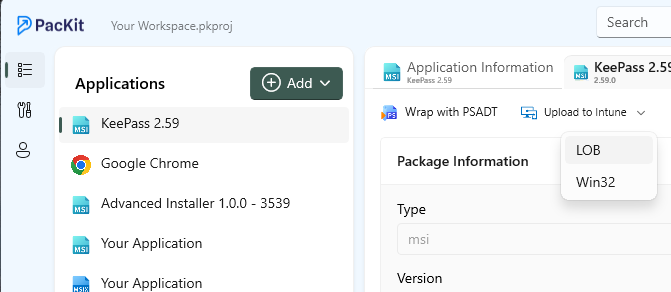
Furthermore, PacKit provides direct upload into Intune, so you don’t even have to go through the hassle of opening your browser, logging in with your credentials, going through the app management page, adding a new application, selecting the type of application you want to upload, and completing all the remaining steps mentioned in this article in the Advanced Installer blog.
PacKit is designed to serve as the last frontier after you have completed your packaging, aiming to reduce your workload and time spent searching for the necessary information to upload an application to Intune.
On top of that, PacKit automates the upload process.
Simply put, by using PacKit, you don’t have to:
- Create your own type of database to store the information about your packages.
- Find alternative tools that handle WinGet separately, and add them to your process, just to add an extra step.
- Use extra tools that convert your application, such as the Microsoft Win32 Content Prep Tool.
PacKit handles all of this. By consolidating multiple tools into one, it reduces manual steps and improves workflow efficiency.
Final Takeaways
- Keeping application deployments current in Intune takes patience, repetition, and tooling expertise, and the manual steps can quickly eat up time and focus from packaging teams.
- Win32 deployment workflows require extra preparation steps and provide almost no stored package context, making every update feel like rebuilding from scratch.
- Tools like Advanced Installer make MSI creation practical because MSI technology on its own is complex, rule-heavy, and not something teams can efficiently manage without the right interface.
- PacKit simplifies the entire process by pulling WinGet metadata, storing per-app workspaces, converting to .intunewin, and handling Intune uploads without jumping across portals or scripts.
- With PacKit and Advanced Installer used together, packaging and deployment shift from manual repetition to a faster, centralized, and far more predictable workflow that scales with real-world enterprise needs.
Conclusion
Maintaining a modern application infrastructure—especially within Intune—demands significant time, precision, and technical effort. While traditional packaging and deployment workflows are functional, they often involve repetitive manual steps and fragmented tooling.
PacKit emerges as a transformative solution by streamlining the entire process: from WinGet-powered package sourcing to workspace-based version control and direct Intune uploads. When paired with Advanced Installer, PacKit not only simplifies MSI creation but also consolidates multiple deployment tools into a single, efficient platform. For IT teams seeking to reduce operational overhead and accelerate application delivery, PacKit represents a compelling leap forward in automation and infrastructure optimization.