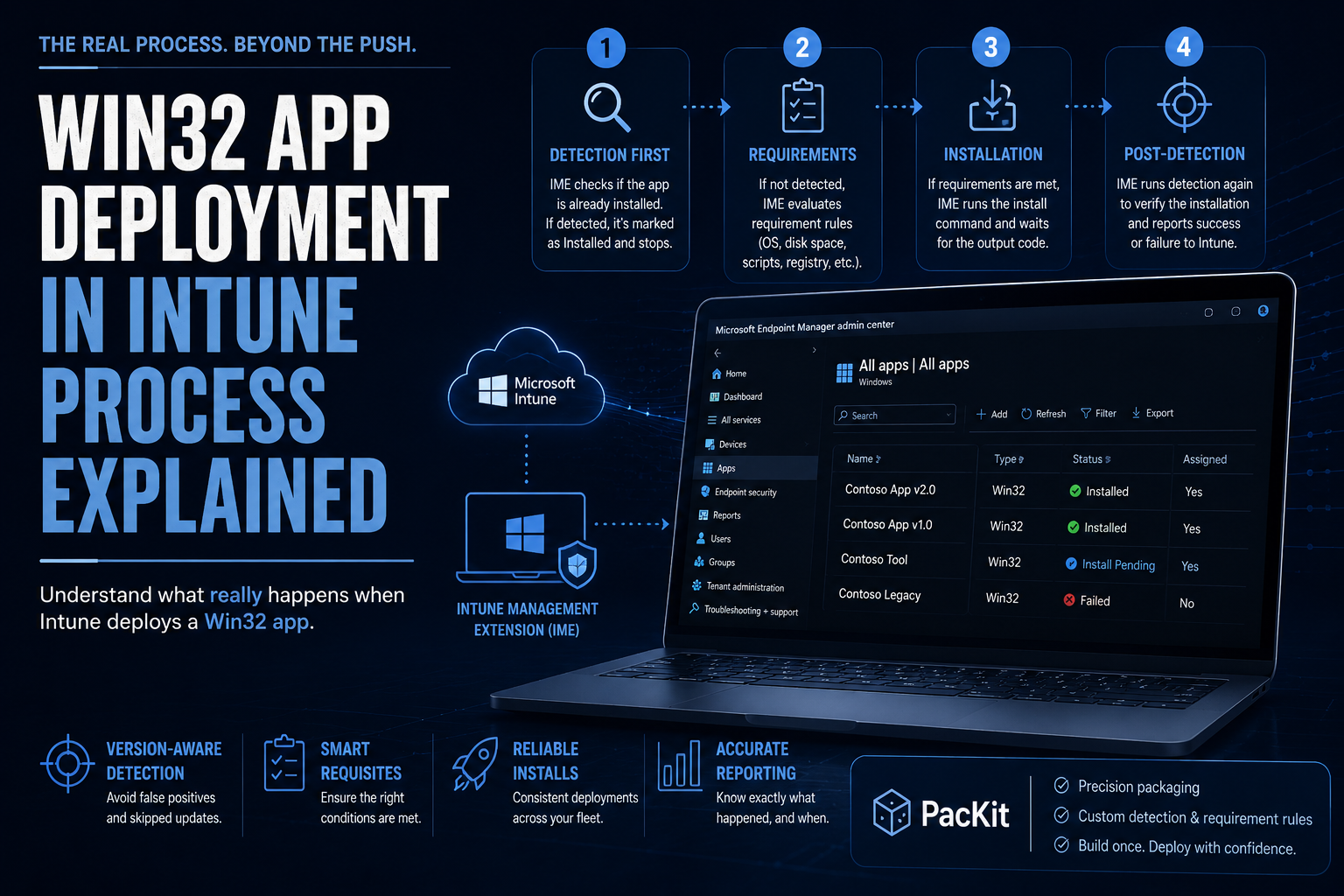
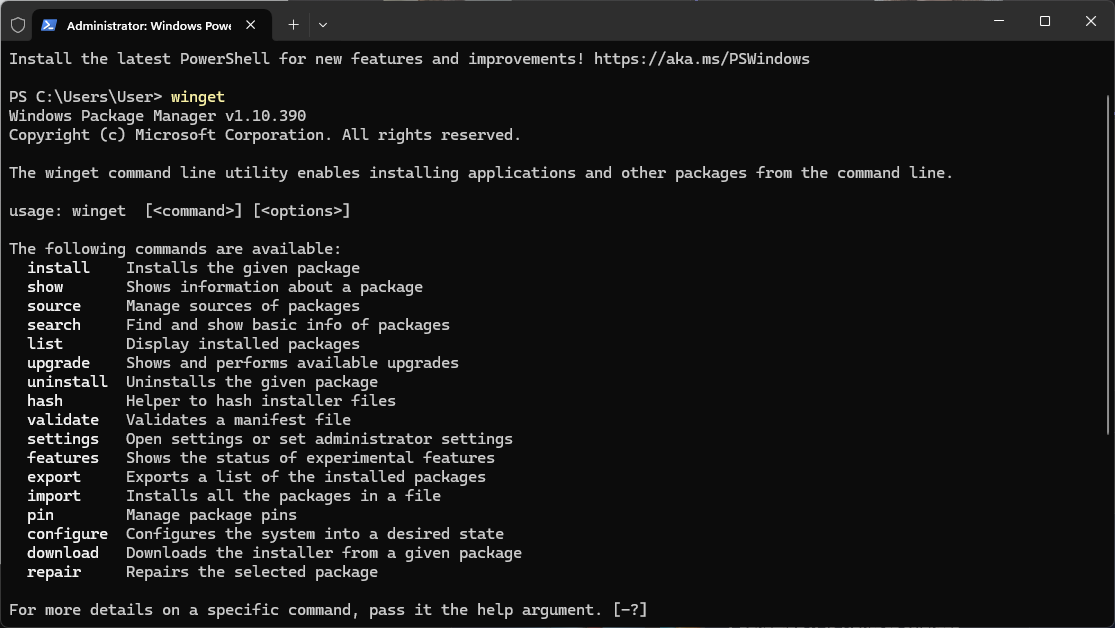
PacKit’s extensive integrated Winget application catalog makes it simple to add application packages to your workspace.
With the integration of the PowerShell App Deployment Toolkit, you can customize any of these applications before uploading them to Intune or SCCM.
Python is our top choice application for this blog post.
Scenario: You Need a Python Custom Installer with Prerequisites
Let’s discuss our scenario.
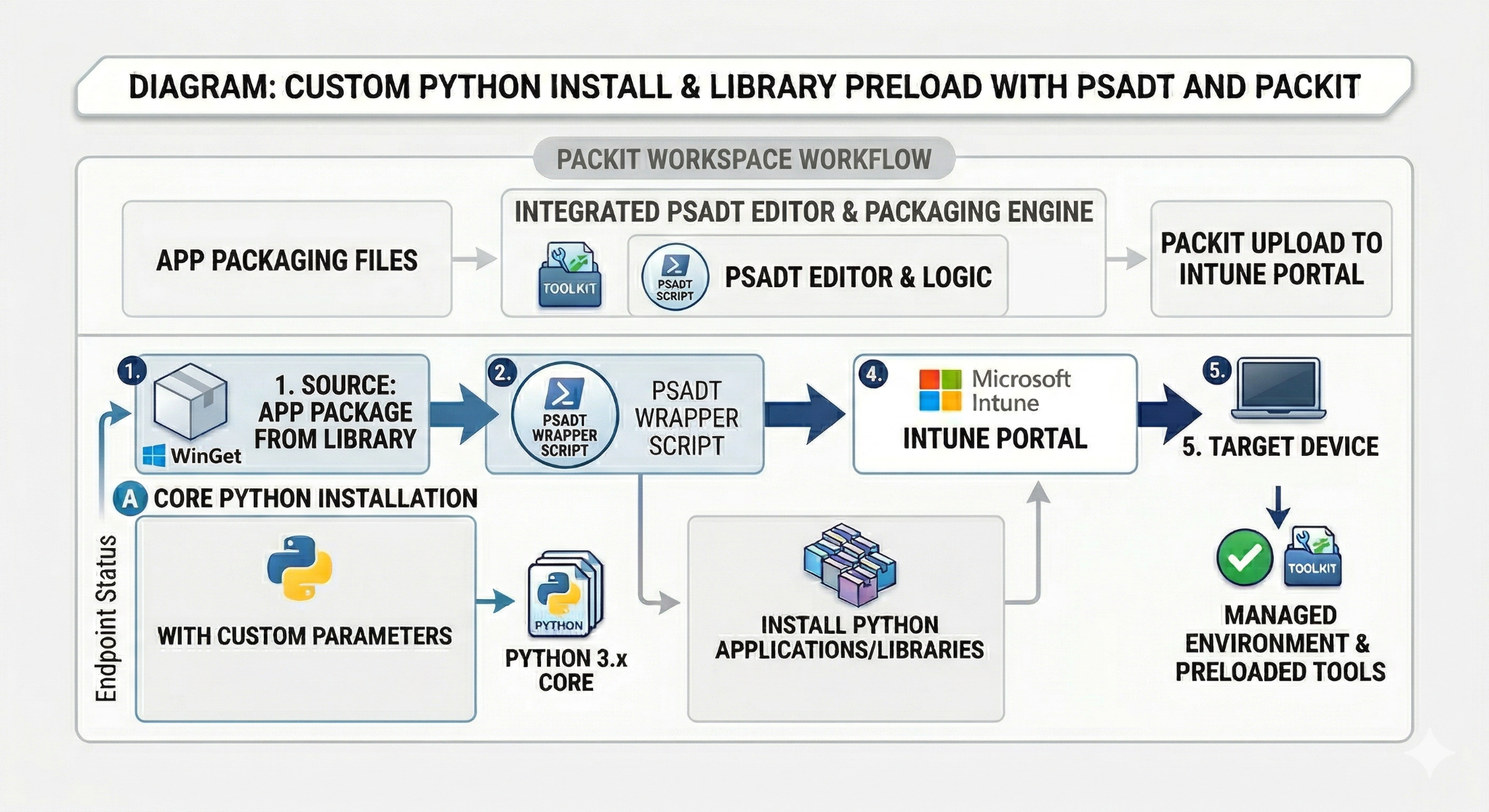
We want Python to be installed with custom parameters, but we also want to install Python applications from the library as a post-install step.
You can consider it as deploying a managed Python environment and preloading it with specific Python-based tools or libraries, all wrapped in a PSADT script that uses PacKit.
Here is a summary of the steps:
- Import Python into PacKit Workspace
- Wrap with PSADT
- Customise post-install
1. Import Python into PacKit Workspace
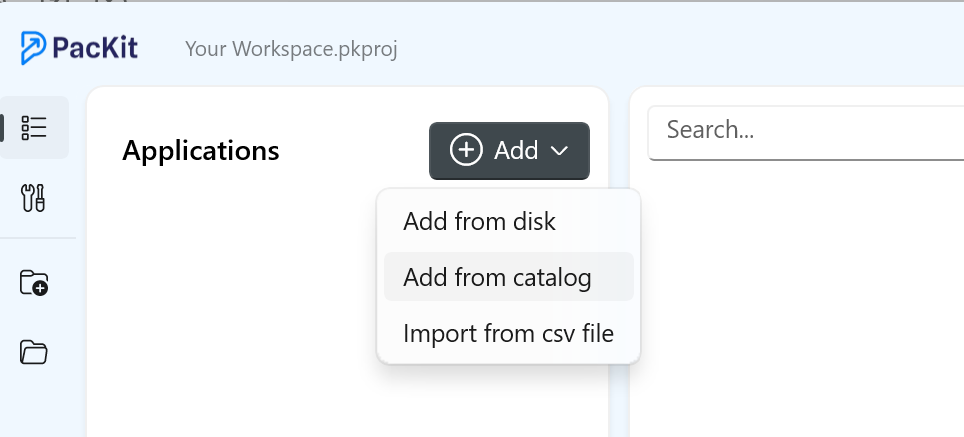
From your workspace, select Add from catalog and search for your Python application.
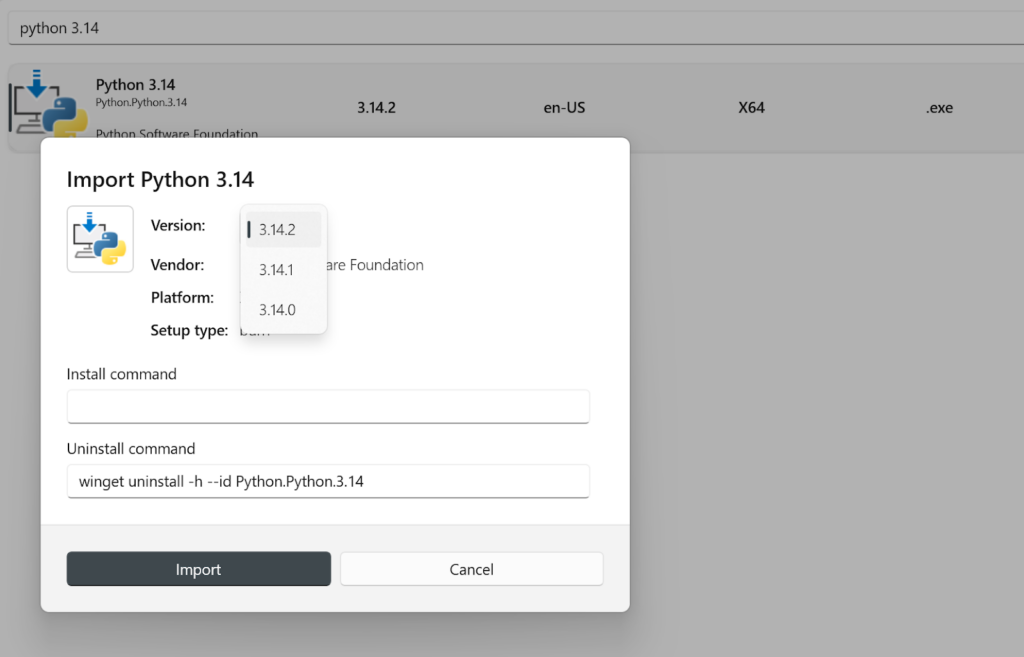
Once found, select the app, and a pop-up window with multiple options will appear.
If any subversions are available, you can select them here. In addition, you can alter the install and uninstall commands.
When finished, click on the Import button. It will begin the process of downloading the source file and adding the application to your workspace.
2. Wrap with PSADT
When you import the application, all the information is automatically populated.
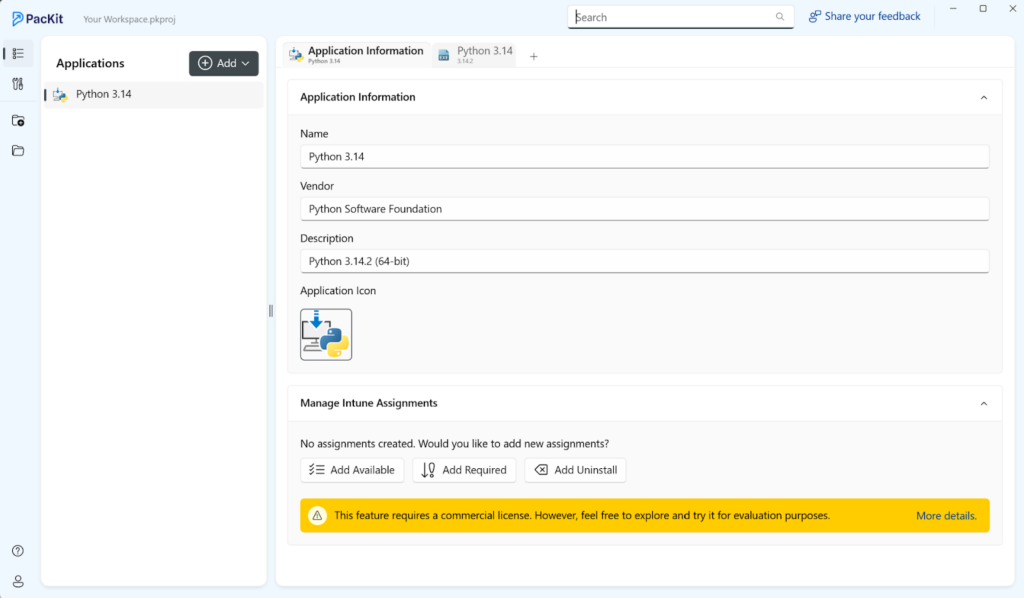
Your next step is to switch from the Application Information to the actual application tab. Then click on Wrap with PSADT.
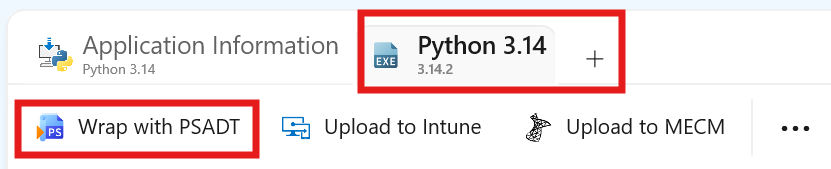
This will generate the PSADT with the full folder structure.
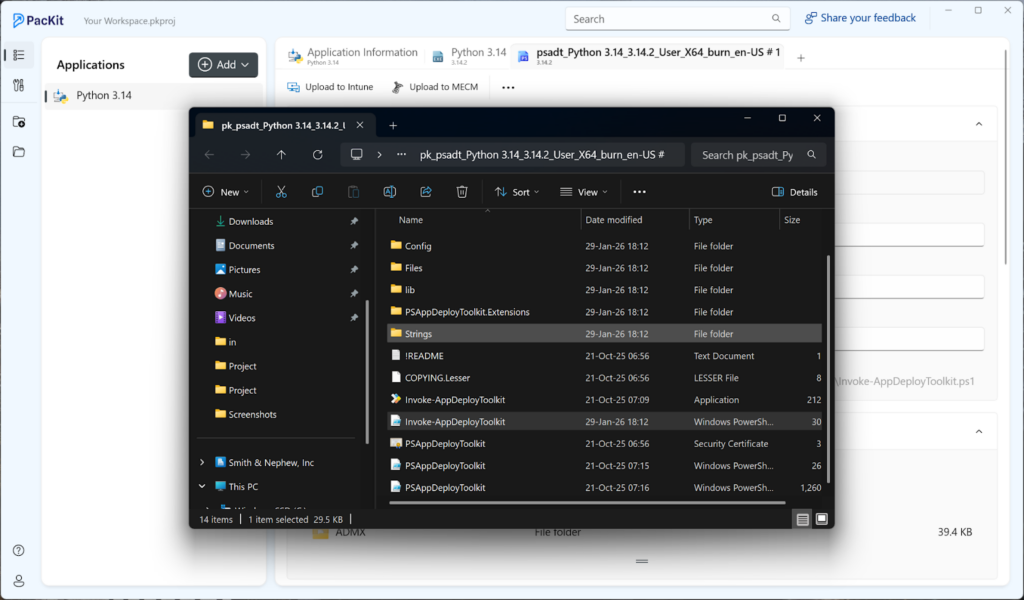
3. Customise
Now that you’ve generated your PSADT script, you can either customize it directly in PacKit or edit it in your preferred editor.
PacKit is my favorite tool for quick edits, while my fullscreen editor is ideal for heavy edits.
The sections inside PSADT script that are important for our case and needs to be customised are [Install] and [Post-Install]
[Install]:
## <Perform Installation tasks here>
Start-ADTProcess -FilePath 'Python 3.14_3.14.2_User_X64_burn_en-US.exe' -WindowStyle 'Hidden'To add your desired custom parameters, you should add the -ArgumentList parameter.
Let’s move on to the post-install part. Here, we stated that we want to install some Python applications.
To do so, we need to execute python.exe and call the pip argument with the desired Python app name.
For context, pip is the Python package manager that triggers the installation of libraries and packages from the Python Package Index (PyPI).
In our PSADT script, we need to add this command line:
Start-ADTProcess -FilePath “envProgamFiles\Python314\python.exe”
-ArgumentList “pip install black” -WindowStyle 'Hidden'Let’s break down the parameters:
–FilePath: We need to specify where the interpreter python.exe is located on the machine after it was installed using our previous command line. To find the path before creating the PSADT script, you need to manually install Python on a test machine and retrieve it from there.
–ArgumentList: Here, you call pip followed by the install command and specify the application/module name. In this case, we install “black,” an automatic Python code formatter tool.
To install additional applications, you can simply enumerate more in the same command line:
Start-ADTProcess -FilePath “envProgamFiles\Python314\python.exe”
-ArgumentList “pip install black flask requests” -WindowStyle 'Hidden'Conclusion
Using PacKit in combination with PSADT gives you more than just the ability to deploy Python as a standard application. It allows you to provide your devices with a managed Python environment that is ready to use.
You can automatically preload any Python-based tools or libraries your users or admins need by adding a simple post-install step that runs the Python interpreter and installs packages using pip.
This means your deployment is no longer limited to “install only Python” but also includes “install Python and everything that should come with it.”
Whether that is formatting tools like black, web frameworks, automation libraries, or internal packages, they can all be delivered in a single, repeatable deployment wrapped by PSADT and distributed through Intune or SCCM.
In practice, PacKit handles the packaging, PSADT handles the installation logic, and pip handles the Python ecosystem.
Final Takeaways
PacKit helps you to add application packages to your workspace due to its extensive integrations of the WinGet application catalog and PSADT. You can then customize your applications and upload them to either Intune or SCCM.
- Scenario: Python should be installed using custom parameters, and Python applications should be installed as a post-install step.
Import Python in your PacKit workspace:
- From your workspace, click on Add from catalog and search for your Python application. Once found, click on the said app and then the Import button. It will start the process of downloading the source file and add the application to your workspace
Wrap using PSADT:
- Switch from the Application Information to the actual application tab. Then click on Wrap with PSADT.
- This will generate the PSADT with the full folder structure.
Customize:
- The sections inside PSADT script that needs to be customized are [Install] and [Post-Install]
- Add the -ArgumentList parameter to add your desired custom parameters
- Post-install (execute python.exe and call the pip argument with the Python app name) command line: Start-ADTProcess -FilePath “envProgamFiles\Python314\python.exe” -ArgumentList “pip install black” -WindowStyle ‘Hidden’
To install additional applications, you can simply enumerate more in the same command line: Start-ADTProcess -FilePath “envProgamFiles\Python314\python.exe” -ArgumentList “pip install black flask requests” -WindowStyle ‘Hidden’
Receive webinar invites, tutorials, and best practices from experts straight to your inbox.
Subscribe now.