
This view contains specific package information that is stored in your workspace and will be synced with Intune or MECM when you click on Upload to Intune or Upload to MECM power buttons.
The first time you add a package in the workspace this information must be customized by you. Some elements will be automatically filled in with information from the package or the package repository.
Once you have configured a package information you no longer need to ever reenter this information. PacKit will save and re-use it every time you update and upload your application to Intune or MECM, saving you time and avoiding error-prone scenarios where a single deployment is broken due to incorrectly copied configurations.
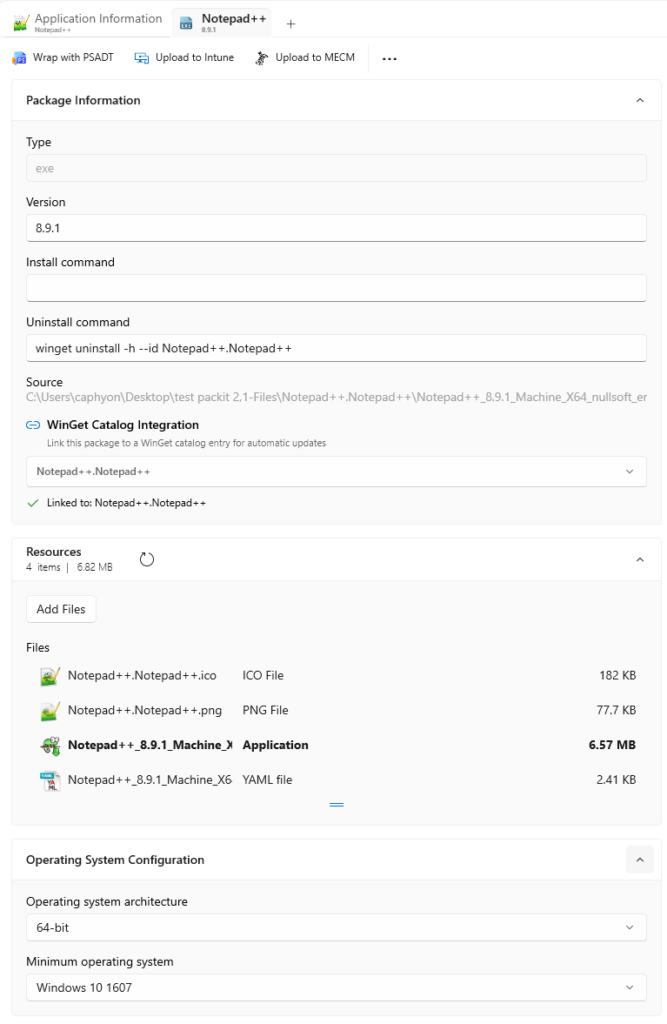
Package Information
Type
The type of the package, for example, exe or msi.
Version
The version of the package.
Install command
The command line is used for the package installation.
Uninstall command
The command line used for the package uninstall.
Source
The path on the disk for the package.
Winget Catalog Integration
This feature will search for your package in the Winget gallery and if it finds it, will link it to the Winget entry, so future updates can be received.
Resources
In this section, the package files are displayed. You can add resources to the package by using [Add Files…] button.
Operating system architecture
Specify the OS architecture:
- 32-bit
- 64-bit
- 32/64-bit
Minimum operating system
Specify the Minimum OS version.
Detection Method
In this section, you can configure the Intune Detection Rules for the package. You can specify a custom script, file path, registry, or MSI productcode.
Rules format
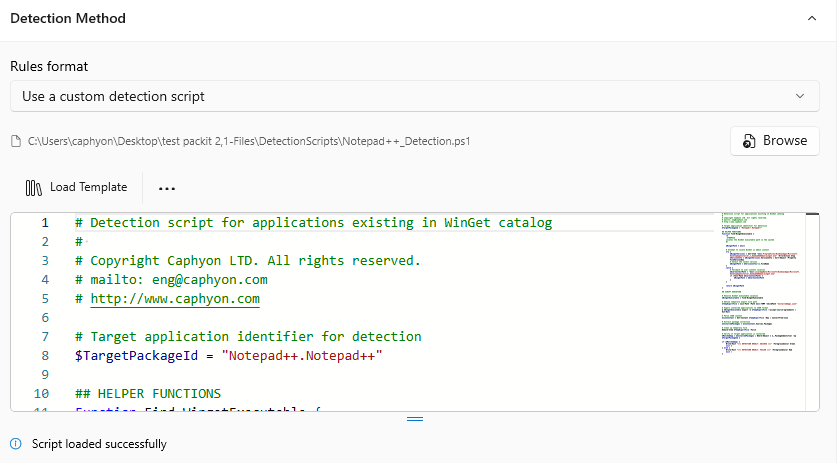
The rules for detecting the presence of the app can be established in the following way:
- Use a Custom Detection Script – you can use one of our default Template script files (either for WinGet or for generic EXE files) for the app presence detection rules using Load Template button. You can also use our built-in editor to enhance it. The scripts return “0” for success and “1” for failure. To use your own custom script, click on Browse button and pick the file from disk.
- Manually configure detection rules – specify the Rule Type :
We recommend encoding your script as UTF-8 BOM. When the script exits with the value of 0, the script execution was successful. The second output channel indicates that the app was detected. STDOUT data indicates that the app was found on the client. We don’t look for a particular string from STDOUT.
Rule type
- MSI – specify a MSI Product Code
- File – specify a file Path and a File or Folder name
- Registry – specify a registry Key Path and a Value Name
PowerShell Script Editor
This section is only available for PSADT scripts!

The PSADT script can be edited using our built-in editor or by directly editing the PS1 file using your preferred editor.
Placeholders are used to synchronize the script with the values you specify in the GUI. The following placeholders are supported in the PowerShell script editor :
{{APPLICATION_NAME}}
- points to the name of the app
{{APPLICATION_VENDOR}}
- points to the manufacturer of the app
{{PACKAGE_VERSION}}
- points to the version of the package
{{OS_ARCHITECTURE}}
- points to the operating system architecture
Use [Load Script…] and [Save Script…] pushbuttons to reload and save the script if the file was modified outside of PacKit.
Light(Default), Dark or High Contrast viewing modes can be selected.
