If you read our previous article on Intune deployment latency and how the Intune Management Extension (IME) handles its check-in cycles, you already know that timing plays an important role in Intune’s behavior.
In this article, let’s talk about registry-based detection rules and the possible reasons why they fail in some applications.
How detection rules work in IME
Before we get into the reasons, let us first try to understand how things should work in IME.
After installing a Win32 app, the IME immediately runs the detection logic configured in the portal. In terms of detection logic, it can be a registry check, file or folder checks, or a custom PowerShell script that is placed on each application. And this doesn’t wait.
Once the installer returns an exit code, IME interprets it as a success or failure based on the exit code and immediately runs detection to confirm if the application is installed or not.
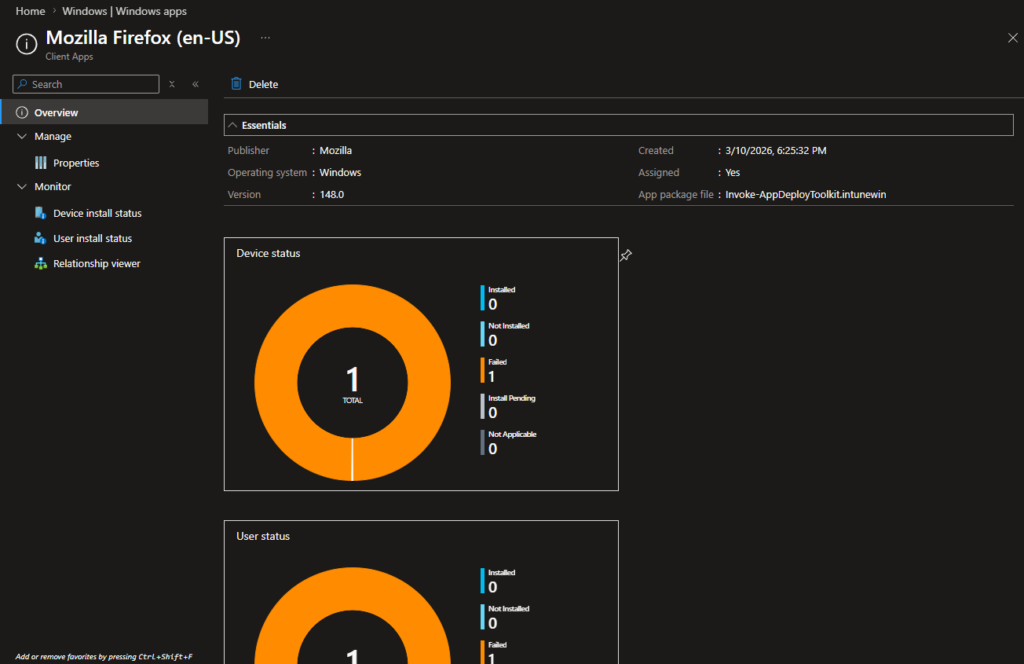
The result of that detection is what IME reports back to the Intune portal, and if the installer exists cleanly with a return code 0, but the detection returns nothing, the deployment is marked as failed in Intune.
The application can be fully functional on the device, but Intune will still display a red status because, from its perspective, the detection is the only source of truth.
Another thing to keep in mind is that IME runs in the SYSTEM context, which we will discuss later on in the article.
Now that we understand how IME and detections work, let’s look at some of the most common reasons for detection failure when using a registry detection rule.
Causes of Intune Registry Detection Failure
Cause 1: The registry has not been written yet
So, keep in mind that for a detection check to run, the installer must pass a successful exit code. It could be 0, 3010, or you can define custom exit codes within Intune that IME will process as successful.
Once this is done, the IME immediately fires the detection mechanism. However, some installers, particularly those based on EXE, may experience a slight delay.
If you deploy a standard MSI, you won’t hit this problem because the Windows installer holds the exit code until the entire installation is complete, which includes writing all registry entries containing the Uninstall hive keys.
By the time IME receives the exit code and runs the detection, everything is already there.
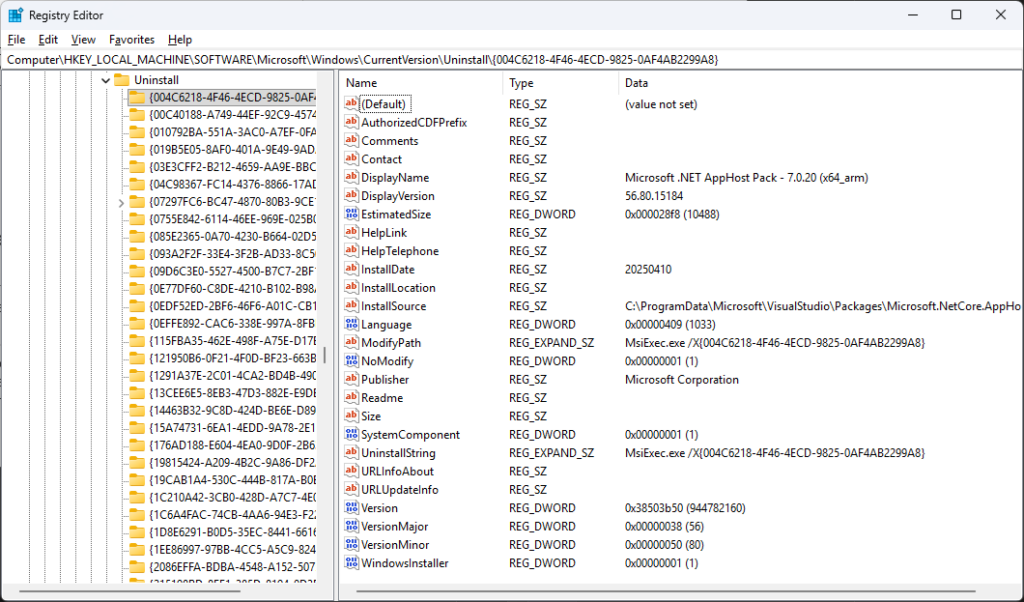
The problem appears with EXE wrappers because EXE files do not follow any patterns.
Vendors can ship an EXE that unpacks and launches an MSI or multiple installers in the background before immediately returning an exit code without waiting for the child process to finish.
From IME’s perspective, the installation is complete, and the detection logic is activated, but the detection keys are missing because the installers haven’t finished processing in the background.
The same thing can happen with chained installers, where the main executable finishes and the next one starts, and that secondary process is the one responsible for writing the registry keys you are using for detection.
If you suspect this is your issue, the quickest way to confirm is to run the installer manually on a test machine and check the Task manager for child processes.
This fix involves either switching to a custom PowerShell detection script with a short delay or finding a cleaner install switch that forces the EXE to wait for all child processes before returning.
Here is an example of a PowerShell detection delay script:
Start-Sleep -Seconds 10
$key = Get-ItemProperty -Path "HKLM:\SOFTWARE\Microsoft\Windows\CurrentVersion\Uninstall\YourApp" -ErrorAction SilentlyContinue
if ($key -and $key.DisplayVersion -eq "1.2.3") { Write-Output "Detected" exit 0} else { exit 1}Ten seconds is usually more than enough for a registry write to finish, but if Intune still reports a failed detection afterwards, you know it is not a timing issue and you should look elsewhere.
Cause 2: 32-bit vs 64-bit Registry
In 2026, the majority of the operating systems run on 64-bit hardware. However, it doesn’t mean that all the applications are created as 64-bit.
32-bit applications do not write to HKLM\Software directly. Instead, they write to HKLM\Software\Wow6432Node, which Windows silently redirects them to via registry reflection.
If you’re targeting a 32-bit installer and your detection rule points to HKLM\Software\YouVendor\YouApp, you won’t get anywhere, even if the key exists under WOW6432Node.
When configuring a registry detection rule in the Intune portal, you can look for the “Associated with a 32-bit app on 64-bit clients” checkbox.
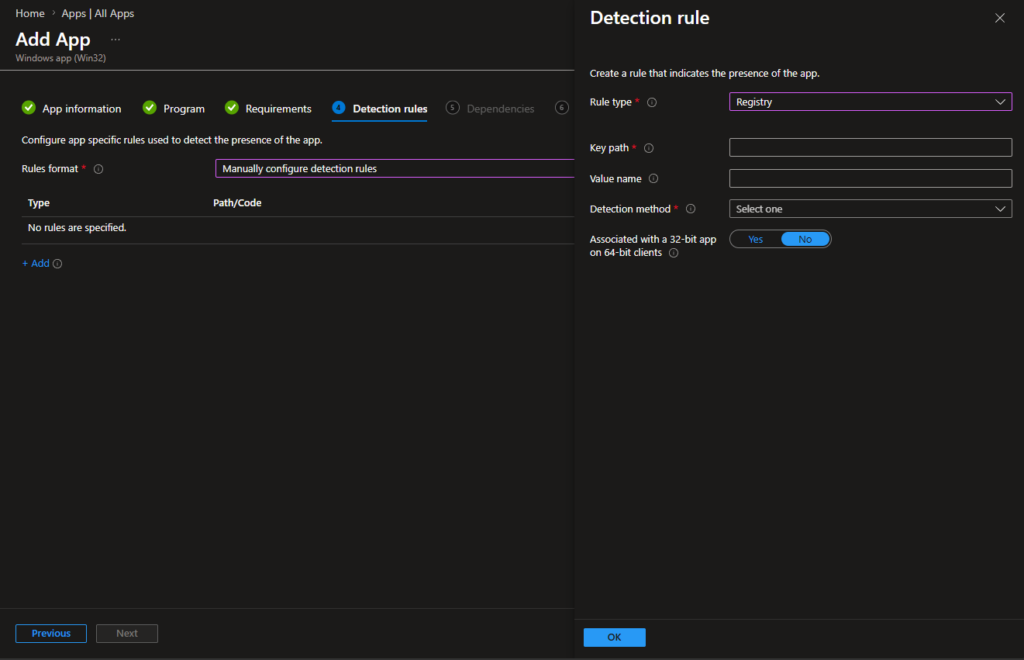
So, make sure to properly select the architecture of the application you intend to install.
Cause 3: The System context issue
As previously mentioned, IME runs as SYSTEM (or NT Authority\System to be more precise).
If your application has a detection method present in HKEY_CURRENT_USER, meaning this is a per-user installable application, when IME checks the HKCU, it won’t actually be the proper user’s HKCU, but the SYSTEM account’s HKCU.
HKEY_CURRENT_USER is a redirection of the HKEY_USERS\USER_ID, where USER_ID is one of S-1-5-21-xxxxx-xxxxx-xxxx-xxxx.
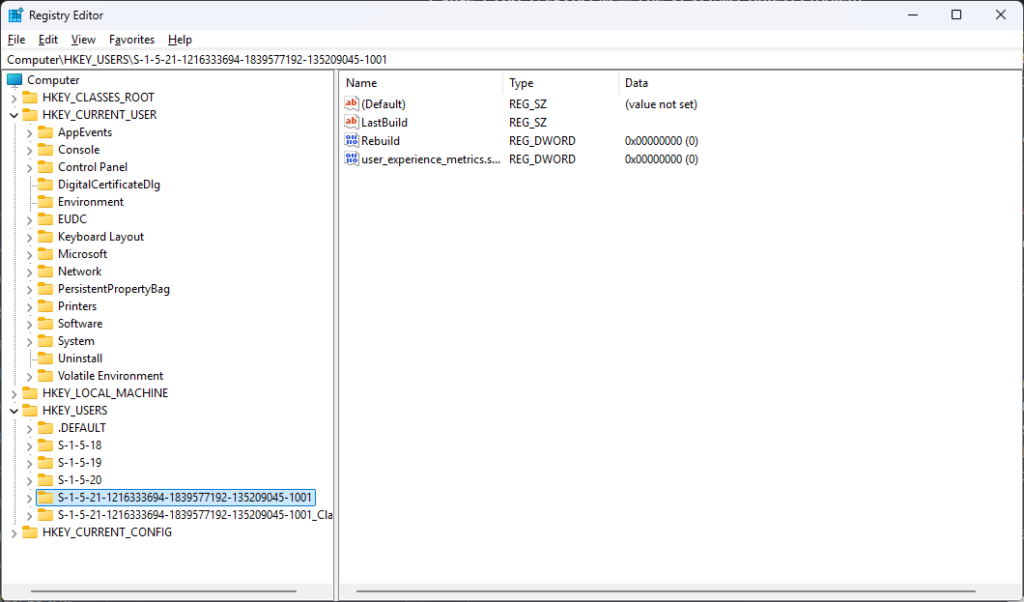
In that case, IME will only look in the SYSTEM registry, not the current logged-in user’s.
The solution is to either switch to an HKLM based detection path if the application writes anything there or to create a custom PowerShell detection script that manually loads the user’s registry hive.
In the large infrastructure environments, per-user applications are usually repackaged to be targeted on a per-machine basis, and the detection works like a charm.
However, if auto-updates are involved, switching to a per-machine solution won’t work because the application may not have sufficient permissions to update itself, or worse, install an update on a per-user basis while the per-machine one still exists on the machine.
There is no “one size fits all” solution here because it all depends on the application’s context.
How to Diagnose Using IME Logs
When a detection fails or you have other errors with your application and can’t immediately tell why, the IME logs are the right place to start.
You can find the IME logs at:
C:\ProgramData\Microsoft\IntuneManagementExtension\Logs\IntuneManagementExtension.logThis is the main log, and you will find all the necessary information for your application. This will display all the steps taken during the installation, as well as whether it failed or succeeded.
If there is a registry issue, you will find entries showing exactly what path IME was looking for, what value is expected, and what it actually found or did not find.
Conclusion
Intune’s detection logic is strict: IME trusts only the detection result, so any delay, wrong registry path, or SYSTEM‑context mismatch can cause a perfectly working app to appear as failed.
Most issues come from EXE installers returning too early, 32‑bit vs 64‑bit registry confusion, or HKCU detections that IME cannot see.
Clear detection design and checking the IME logs keep these problems easy to diagnose and avoid.
Try PacKit for free to get access to features such as:
- Generating .intunewin file automatically, including converting EXE, MSI, or PSADT-wrapped packages to .intunewin files
- Reuse install command lines from sibling packages when deploying the .intunewin file
- Direct upload to Intune, including creating EntraID groups directly in PacKit, assigning apps in one click, reusing app assignments, and easily managing Intune detection rules
You can learn more about PacKit features here.
Final Takeaways
- After installing a Win32 app, the IME immediately executes the detection logic configured in the portal. In terms of detection logic, it could be a registry check, file or folder checks, or a custom PowerShell script that is installed with each application.
- Once the installer returns an exit code, IME interprets it as a success or failure based on the exit code and immediately launches detection to confirm whether or not the application is installed.
- IME reports back to the Intune portal, and if the installer exists cleanly with a return code 0 but the detection returns nothing, the deployment is marked as failed in Intune.
TL;DR: Causes of Intune Registry Detection Failures and Solutions:
- The registry has not been written yet: if you suspect this is the problem, the quickest way to confirm it is to run the installer manually on a test machine and check the Task Manager for child processes before using a custom PowerShell detection script with a short delay or finding a cleaner install switch that forces the EXE to wait for all child processes before returning
- 32-bit vs 64-bit Registry: when configuring a registry detection rule in the Intune portal, select the “Associated with a 32-bit app on 64-bit clients” checkbox
- The System context issue: switch to an HKLM-based detection path if the application writes anything there or create a custom PowerShell detection script that manually loads the user’s registry hive