Troubleshooting Win32 applications in Microsoft Intune can sometimes feel complex, especially when deployments fail without clear error messages in the Intune portal.
Fortunately, the Intune Management Extension (IME) provides detailed client-side logging that helps understand exactly where an application deployment is failing.
The IME service logs every stage of the Win32 deployment workflow, including content download, decryption, installation, and compliance reporting. Understanding this client-side process is one of the most effective ways to troubleshoot Intune Win32 app deployments.
This guide walks administrators through the entire troubleshooting process for the Intune Win32 app and explains the most important log entries.
Understanding the Intune Management Extension Workflow
The Intune Management Extension is responsible for processing Win32 app deployments on managed Windows devices.
During deployment, the IME handles:
- Detection rule evaluation
- Applicability checks
- Content download
- Hash verification and decryption
- Package extraction
- Application installation
- Post-install detection
- Compliance state reporting
The primary logs are stored in:
C:\ProgramData\Microsoft\IntuneManagementExtension\LogsDetection Rules Evaluation
Intune Win32 apps use detection logic very similar to the SCCM (MECM/ConfigMgr) application model. Detection rules determine whether an application has already been installed before installation begins.
In this example, the detection rule uses an MSI product code. If the product is not detected, the log records:

This indicates the application is not currently installed and deployment should continue.
Detection failures are among the most common causes of Win32 deployment issues. Incorrect MSI codes, registry paths, or file detection logic often cause Intune to report a failed deployment, even if the application installs successfully.
Check Applicability
After detection rule processing, Intune performs applicability checks against the deployment requirements configured in the Win32 app.
The typical log entries include:

If any requirement fails, the application installation will not proceed.
Applicability checks are useful when troubleshooting situations in which applications never begin downloading or installing.
Content Download
When applicability checks succeed, the Intune client starts downloading the Win32 package content.
Downloaded content first arrives in the Incoming folder as an encrypted .bin file:
C:\Program Files (x86)\Microsoft Intune Management Extension\Content\Incoming
The Incoming folder serves as a temporary download location before further processing begins.
After the encrypted package has finished downloading, the IME moves the content into the Staging folder.
C:\Program Files (x86)\Microsoft Intune Management Extension\Content\StagingInside this folder, the package appears as a ZIP file:

This stage prepares the content for hash verification and decryption.
After decryption completes, the IME extracts the application files into the IME Cache folder.

The extracted installation files are now ready for execution.
Once extraction is complete, temporary content in the Staging folder is automatically removed. This cleanup helps to reduce unnecessary disk usage on the client device.
Application Installation
The next phase is the actual application installation.
During this stage, Intune:
- Sets the installation working directory
- Launches the installer
- Tracks process IDs
- Monitors timeout values
- Collects installation results
Example log entries include:
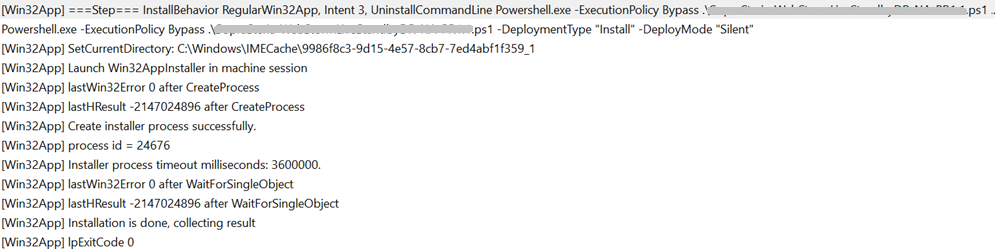
If the installation fails, administrators should focus on:
- Incorrect install commands
- Missing silent switches
- Installer exit codes
- Timeout settings
- SYSTEM context compatibility
For EXE and MSI installers, we recommend setting log parameters. If the app is wrapped with PSADT, the default log directory should be “C:\Windows\Logs\Software”.
You can also check out this article: Top 10 Windows Installer Package Errors and How to Fix Them.
Detection Rules After Installation
Once installation is complete, Intune reruns the detection rules to confirm the application installed successfully.

This final detection determines whether Intune reports the deployment as successful.
If the installer succeeds but detection fails, Intune may incorrectly display the deployment as failed.
Compliance State Reporting
After successful detection, the client sends compliance state information back to the Intune cloud service.
Example entries include:

Once the state message is processed, administrators can view the final installation status in the Intune portal.
If enabled, users may receive a toast notification confirming successful application installation.
Conclusion
Troubleshooting Intune Win32 apps is much easier once administrators understand the IME client-side workflow.
The Intune Management Extension fully logs every deployment stage, including detection rules and applicability checks to content download, decryption, installation, and compliance reporting.
Administrators can isolate where deployments are failing and resolve issues more quickly by carefully reviewing IME logs and understanding the process behind them.