When you deploy a Win32 Application in Intune, you assume the process is as simple as pushing.
Intune sends the app, the device installs it, and that’s where the story ends. However, the actual behavior is not as simple as you might think, so understanding it can save you from future headaches.
So let’s jump into the article and learn about the behavior of the Win32 applications.
How Win32 App Installation Works in Intune
When Intune evaluates a Win32 app on a device, it follows a structured sequence managed by the Intune Management Extension (IME).
The Intune Management Extension is not something found natively on every Windows OS. When the device is enrolled into Intune during the AutoPilot phase, Intune checks if the device has any policies to be applied.
The MDM service then sends a command to download and install the IME, which happens silently in the background during the Enrollment Status Page (ESP) and is listed as IntuneManagementExtension under Services in the Task Manager.
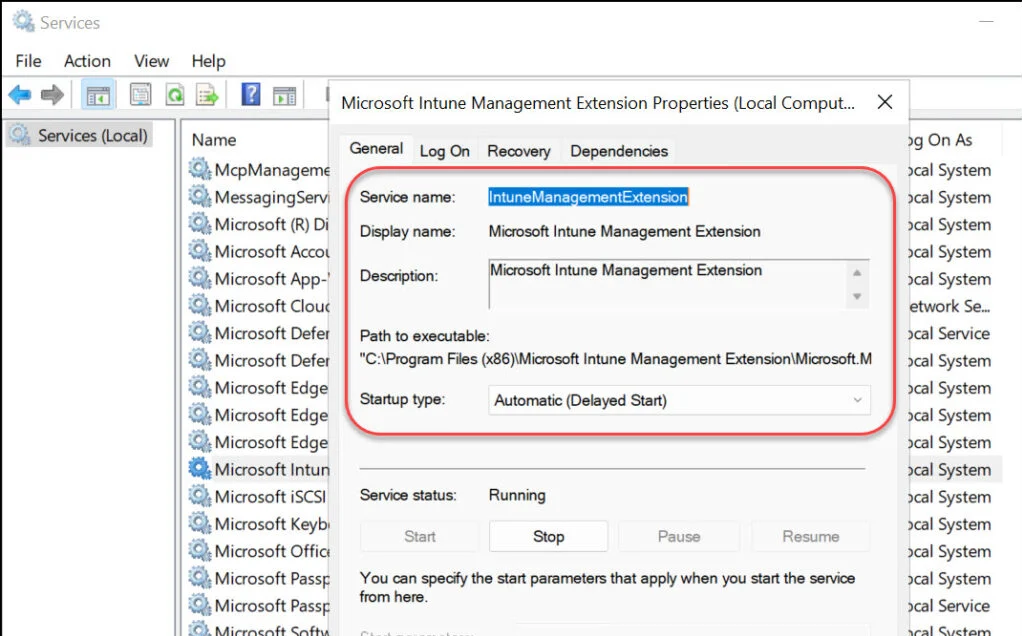
The IME installs the following features:
- PowerShell scripts
- Remediations
- Discovery scripts for custom compliance
- Win32 apps
- Endpoint analytics
- Remote Help
- Managed Installers in Intune
- Update Windows BIOS using configuration MDM policy
In terms of the sequence that IME follows, the unpopular but logical first step is to check if the application is already present on the device, which means that the Detection runs first. If this is already present, then there is no point in running an installer for software that’s already installed. If the detection rule is met, Intune marks the app as Installed in Intune and stops. During this stage, no installation command is executed and no requirement rules are evaluated.
If the app is not detected, IME will then check the requirement rules. This is logical because we now need to evaluate the rules and check if any custom scripts, registry checks, disk space requirements, etc., are needed for the application’s installation. If any of the requirements are not met, the installation will stop.
The third step is to finally run the installation command. During this phase, the IME waits for the execution’s output code within a specific time frame.
Once the installation is complete, it is time to run the detection again to see if the installation was successful. This determines whether the app ends up marked as Installed or Failed in the portal.

This four-step flow is why a common scenario trips people up: if you create a new version of the app and deploy it, but the detection rule matches the old version that is already on the device, Intune will consider the application as installed and skip the whole process altogether.
Even worse, your new application will be marked as Installed in Intune, which will make identification even more difficult.
This is why it is important to think carefully about what your detection rule is actually checking. If you use a simple rule such as a presence of a registry key or folder without validating the version number, it will match both old and new installations equally. So, if you want Intune to distinguish between versions, your detection logic needs to reflect that.
Also, Intune distinguishes between “available” apps and “required” apps. Even if you update an app marked as available but the user has already installed the previous version, Intune will mark it as installed without actually pushing the new version.
What is the solution? Have an updated version of the app as required, but include a requirement rule (old version must be present), and then deploy it to all devices or the specific group that was initially targeted by the “Available” app.
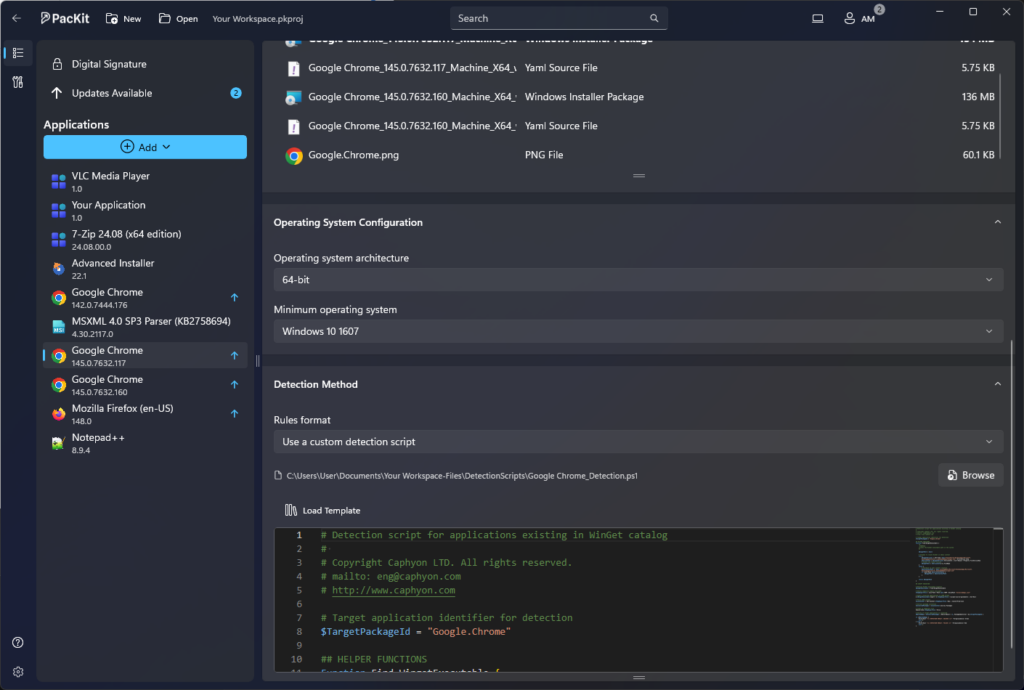
Packaging tools that allow you to fine-tune detection scripts and requirement rules make this much easier to get right from the start.
PacKit, for example, is built around this kind of precision and lets you define exactly what constitutes a valid installation, ensuring that your deployment logic holds up in practice.
Conclusion
Intune’s Win32 app deployment follows a strict IME‑driven sequence where detection, requirements, installation, and post‑detection determine the final outcome.
Because Intune always evaluates detection first, poorly designed detection logic can cause new versions to be skipped entirely and falsely marked as installed. Real-world application deployment requires precise packaging and version-aware detection rules to be reliable and predictable.
Final Takeaways
- When Intune evaluates a Win32 app on a device, it uses a structured sequence managed by the Intune Management Extension (IME)
- When the device is enrolled in Intune during the AutoPilot phase, Intune determines whether any policies should be applied. During the ESP, the MDM service sends a command to download and install the IME, which is then listed as IntuneManagementExtension under Services in the Task Manager.
Here’s the typical four-step workflow:
- Check to see if the application is already installed on the device, in which case the Detection will run first. If this is already present, there is no point in running an installer for previously installed software
- If the app is not detected, IME will check the requirement rules, and if any of them are not met, the installation will terminate
- Run the installation command. The IME waits for the execution’s output code within a specific time frame
- Run the detection again to ensure that the installation was successful, as this determines whether the app is marked as “Installed” or “Failed” in the portal
The Solution:
- Have an updated version of the app as needed, but include a requirement rule (the old version must be present), and then deploy it to all devices or the specific group that was originally targeted by the “Available” app
- Use PacKit, which is built around this level of precision and allows you to define exactly what constitutes a valid installation, ensuring that your deployment logic works in practice