We’ve discussed WinGet in previous articles, mostly in the context of packaging workflows, Intune deployments, PacKit, and how it fits alongside tools like MSIX and MSI.
But in this article I want us to focus on something more fundamental: how WinGet gets into the OS and how to install it.
Installing WinGet on supported Windows versions
Before we jump into any kind of installation steps or instructions, we should note that WinGet is not a simple standalone executable you just download and run once.
WinGet ships as part of the App Installer package, a system component that Microsoft maintains and updates through the Microsoft Store on desktop editions of Windows and regular Windows Updates on Windows Server 2025. This matters because it explains why WinGet might sometimes appear as “missing” even on systems that should support it and why the fix is rarely a traditional installer.
WinGet is preinstalled as part of the App Installer component in Windows 11, a modern build of Windows 10, and Windows Server 2025.
The minimum supported baseline is Windows 10 version 1809, which means that most machines today should have it the moment a user signs in because Microsoft Store registers the Windows Package Manager during that first login.
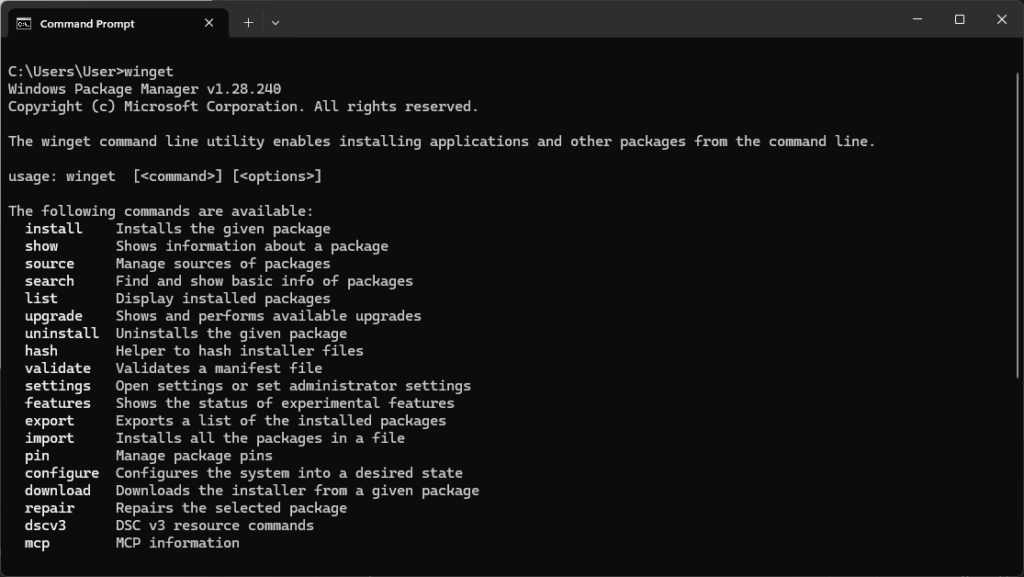
That registration part is probably what people misunderstand, and if you open a fresh VM, log in, and try to run WinGet directly, it will not work because the registration process has not finished yet. This takes place asynchronously in the background.
If you don’t want to wait for that registration process, you can trigger it manually using PowerShell:
Add-AppxPackage -RegisterByFamilyName -MainPackage Microsoft.DesktopAppInstaller_8wekyb3d8bbwe There is also a slim chance that App Installer is not already installed on your device. In that case, you can download it from the Store, which will also install the WinGet component.
However, there is another version of WinGet known as the “preview version” that is technically directed towards developers.
This is basically the “Insider” program, which allows you to test new features before they reach general availability. You can get that version in two ways: either you install the latest WinGet preview version directly, or you sign up with your account for the Windows Insider Program.
WinGet is not available from the start for the Windows Sandbox feature. The whole purpose of Windows Sandbox is to offer a light desktop environment to safely run applications in isolation. However, that means it lacks a few things, one of which is WinGet.
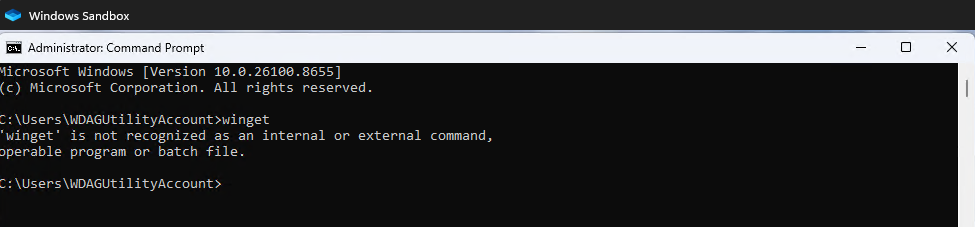
Microsoft offers a simple PowerShell script that you can run to install WinGet in a Windows Sandbox:
$progressPreference = 'silentlyContinue'Write-Host "Installing WinGet PowerShell module from PSGallery..."Install-PackageProvider -Name NuGet -Force | Out-NullInstall-Module -Name Microsoft.WinGet.Client -Force -Repository PSGallery | Out-NullWrite-Host "Using Repair-WinGetPackageManager cmdlet to bootstrap WinGet..."Repair-WinGetPackageManager -AllUsersWrite-Host "Done."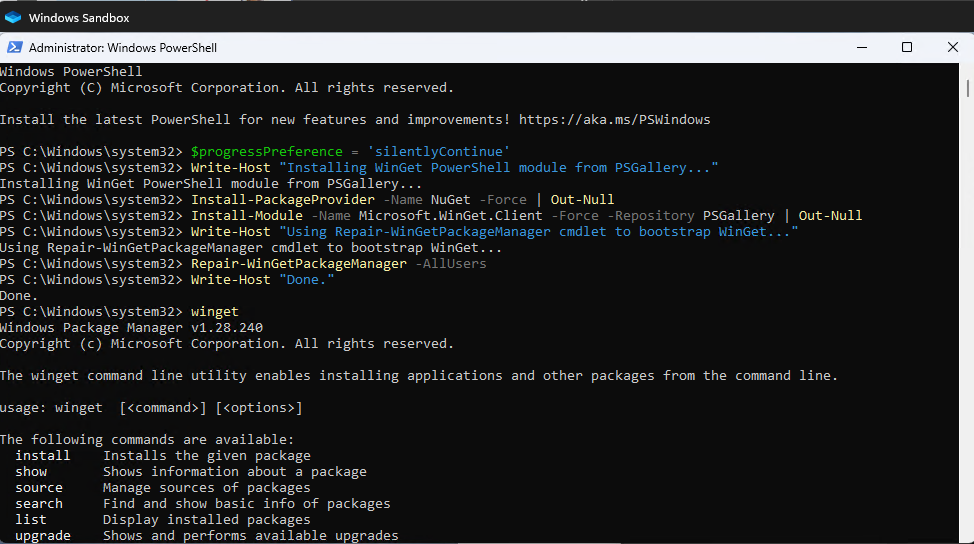
Conclusion
Getting WinGet running on a machine is usually simple since it rides along with the App Installer component and registers itself automatically on first login, but the moment you step outside that happy path, whether that’s a sandboxed environment, a locked-down image, or a desire to run preview builds, the process becomes a lot more deliberate.
Knowing the registration command, the PowerShell bootstrap method, and the difference between the manual preview download and the Insider channel gives you the flexibility to get WinGet working reliably no matter what environment you are starting from.
In a future article, we’ll look at putting WinGet to work for actual package installs and how it works with tools like Advanced Installer in a broader deployment pipeline.
TL;DR – Final Takeaways
- WinGet is included in the App Installer package, a system component that Microsoft maintains and updates via the Microsoft Store on desktop versions of Windows and regular Windows Updates on Windows Server 2025
- Winget is preinstalled as part of the App Installer component in Windows 11, a modern build of Windows 10, and Windows Server 2025
- The minimum supported baseline is Windows 10 version 1809
- Microsoft Store registers the Windows Package Manager during the first login, so if you open a new VM, log in, and try to run WinGet directly, it will simply fail because the registration process has not yet been completed. If you don’t want to wait for the registration process, you can start it manually with PowerShell
- If App Installer is not already installed on your device, you can download it from the Store, which will also install the WinGet component
- WinGet is not available from the start for the Windows Sandbox feature but Microsoft provides a simple PowerShell script to install WinGet in a Windows Sandbox