Modern-day application packaging is done in a very different way than it was in the past. The packaging engineer has to deal with multiple applications and scenarios when creating EXE, MSI, or MSP packages.
This is where tools like PowerShell App Deploy Toolkit (PSADT), Advanced Installer, and PacKit can help.
In a previous article, I tackled migration from PSADT version 3.x to version 4.1 and how that was a game changer in combination with Advanced Installer to overcome limitations.
In this article, I will go over the 4.1.8 release improvements and features (later currently available) for MSP patching.
TL;DR
- PSADT 4.1.8 simplifies MSP patching with automatic logging, multi-product code target matching, aligned parameters, and zero-configuration execution for MSI, MST, and MSP files
- With the upgrade to v4, you gain modular deployment, native SYSTEM context interactive prompts (no ServiceUI.exe) and internal logic automation that eliminates complex custom scripting
PSADT 4.1.8: Key Changes and Use Cases
MSP automatic logging
Previously, using Start-ADTMsiProcess to install an MSI would automatically generate logs for the MSI installer but not for the patches that are called alongside it unless explicitly defined.
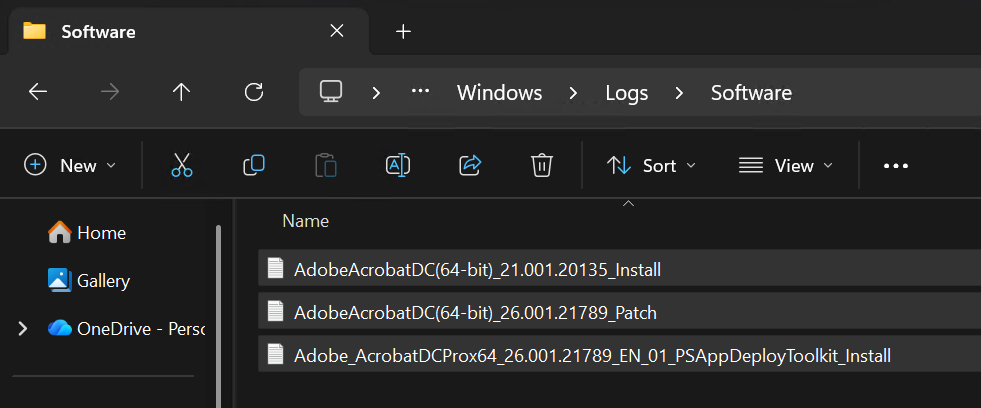
Now, using the same Start-ADTMsiProcess with the -Action ‘Patch’ parameter will generate the same MSP log without the need to use -AdditionalArgumentList.
Here is an example of applying patches over the well-known Adobe Acrobat Pro:
Start-ADTMsiProcess -Action "Patch" -FilePath "$($adtSession.DirFiles)\AcrobatDCx64Updxxxxxxxx.msp"If we go to the default log location C:\windows\logs, we can see all three logs generated there: the PSADT main log, the MSI log, and the MSP log.
Multiple Product Code Support
Before version 4.1.8, when you had a patch that applied for multiple product versions (let’s say a language pack in the form of .msp valid for 2025 and 2026 versions of an application), you would have needed to make sure you had any of the versions present on the machine before applying the patch. Otherwise, the script would return error 1642 and exit the installation.
This would have required a more complex if/else install logic similar to the one below:
$App2025 = Get-ADTApplication -Name 'Demo App 2025'$App2026 = Get-ADTApplication -Name 'Demo App 2026'
If ($App2025) { Write-ADTLogEntry -Message "Found Demo App 2025. Applying patch..." Start-ADTMsiProcess -Action 'Patch' -FilePath "$($adtSession.DirFiles)\SecurityUpdate.msp"} ElseIf ($App2026) { Write-ADTLogEntry -Message "Found Demo App 2026. Applying patch..." Start-ADTMsiProcess -Action 'Patch' -FilePath "$($adtSession.DirFiles)\SecurityUpdate.msp"}Else { Write-ADTLogEntry -Message "No applicable product found to patch."} Now, you can simply use:
Start-ADTMsiProcess -Action 'Patch' -FilePath "$($adtSession.DirFiles)\SecurityUpdate.msp" Why? PSADT 4.1.8 does all the logic internally, searches for any available targetable MSI, and applies the patch. If no base MSI is detected, it will simply skip the patching and add a log entry in the main PSADT log with the return code 0 for the patch action and move forward with the script.
Aligned parameters for MSI and MSP
To clear up the confusion, Start-ADTMsiProcess and Start-ADTMspProcess cmdlets have aligned parameters, and using Start-ADTMspProcess standalone also automatically generates logs.
The complete parameter lists can be found here:
Zero-Config Reliability
While this has been introduced since the early release of version 4.1, it was perfected in PSADT 4.1.8, and MSI is well integrated and supported within the script.
Let’s take an example of a command that needed to be used before:
Start-ADTMsiProcess -Action "Install" -FilePath "$($adtSession.DirFiles)\AcroPro.msi" -Transforms "$($adtSession.DirFiles)\$transform" -Patches "$($adtSession.DirFiles)\AcrobatDCx64Updxxxxxx.msp" -AdditionalArgumentList "EULA_ACCEPT=YES IGNOREVCRT64=1"With PSADT 4.1.8, you take the PSADT template, place the .MSI, .MST, and .MSP files in the Files directory and then execute “Invoke-AppDeployToolkit.exe install.” You do not need to edit a single line of code.
If you have multiple .msi, .mst, and .msp files, the script will take only the first one it finds and apply it (usually in alphabetical order).
Still on PSADT version 3.x? Things to consider when upgrading to PSADT 4.1.8
- PSADT v4 has moved to a completely modular structure. This means upgrading from one version to another in the future allows you to simply drop in the updated module while keeping your .ps1 scripts, configuration files, and package assets are completely separate and intact.
- The MSI and MSP commands are only a fraction of what the modern toolkit is capable of. The toolkit’s built-in logic saves you hours of scripting by allowing you to write a single line of code instead of relying on old-fashioned If/Else blocks, custom detections, and manual file searches.
- No more ServiceUI.exe. If you need to display interactive prompts to a user while an application is deploying in the SYSTEM context (such as via SCCM or Intune), the v4 framework handles the session crossover natively. You no longer need to bundle or wrestle with ServiceUI.exe.
- PSADT offers a v3 backward-compatibility template, so you don’t have to worry about having to rewrite all your existing v3 packages to work with v4. However, I highly suggest taking the time to modernize your code natively in v4. It will give you a much cleaner script and eliminate technical debt for the future.
Conclusion
PSADT matured well to version 4.1.8.
The MSP and MSI features proved to be extremely beneficial in the enterprise world, especially for Application Packagers who do high-volume packaging with vendor-provided MSI sources, for Security and Patching teams who deploy patches frequently on large applications, and last but not least, for Level 3 Support and Troubleshooting who encounter incident tickets related to failed application and patch installation.
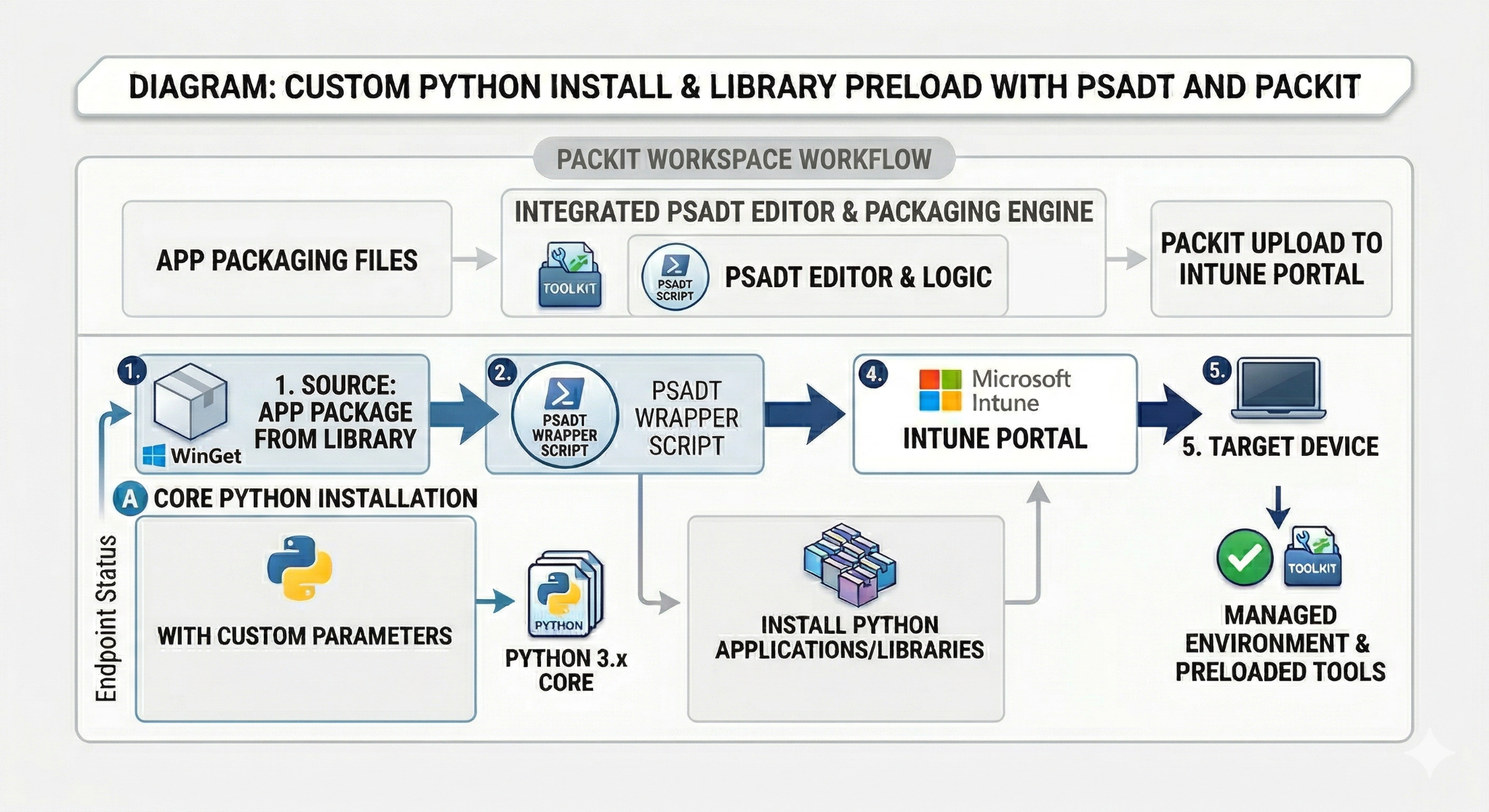
Did you know our tool PacKit has PSADT version 4.1.8 fully integrated? You can get it from here and try it for free.
Speaking of PSADT, PacKit comes with a solid set of features built around it:
- Custom PSADT templates
- Digital signing support for PSADT scripts and detection scripts
- PSADT 3.x and 4.x support
- PSADT inline editor
Access features such as IntuneWin Auto-Generator, WinGet integration, and SCCM & Intune Upload instantly. No registration needed.
You can find out more about PacKit’s features here.