When you use the IntuneWinAppUtil tool to package a Win32 application for Microsoft Intune, you get a .intunewin file, which is essentially a self-contained archive that bundles your installer together with the scripts and any supporting files into a single file.
Most of the time, this file goes straight into the Intune portal, and you never need to look inside it again.
But what if you need to extract it and look inside? Maybe you’ve lost the project and need to extract the contents of the .intunewin file to recover the package you worked on. The scenarios are endless.
So, how do you extract it?
In this article, I want us to understand how to extract the contents of the .intunewin file and what tools are necessary.
What Is Inside an IntuneWin File?
Before we talk about any tool, I believe it helps to understand what we are dealing with when we talk about intunewin files.
An .intunewin file is equivalent to a “zip” archive, which means we can open the outer container with 7-Zip or any similar archive tool without any special preparation.
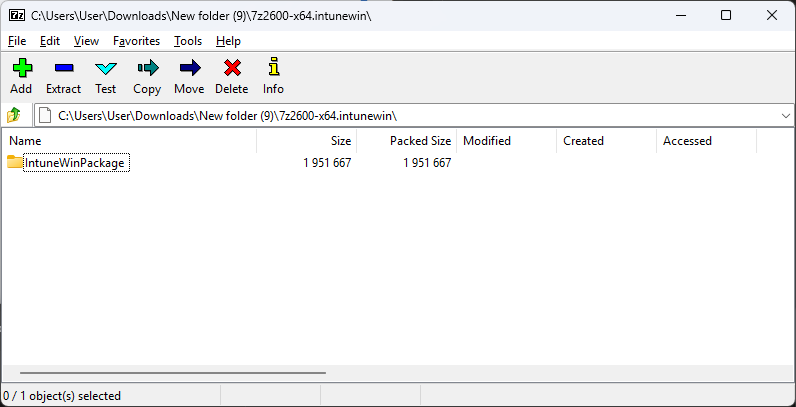
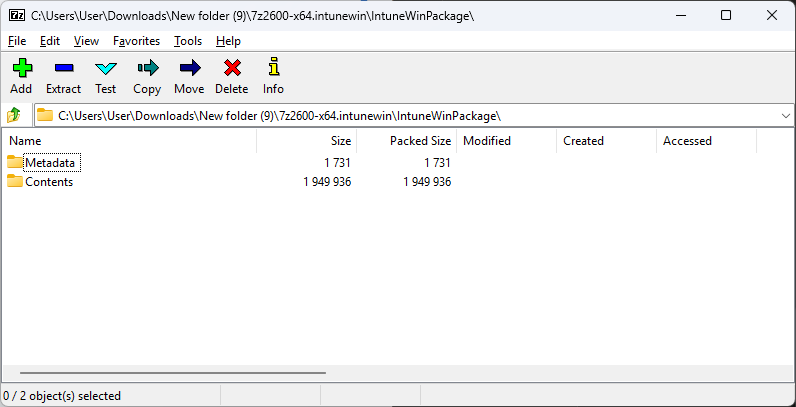
Inside the main folder, you will find two key components: a Metadata folder containing a Detection.xml file and a Contents folder containing another .intunewin file. However, that .intunewin file is encrypted.
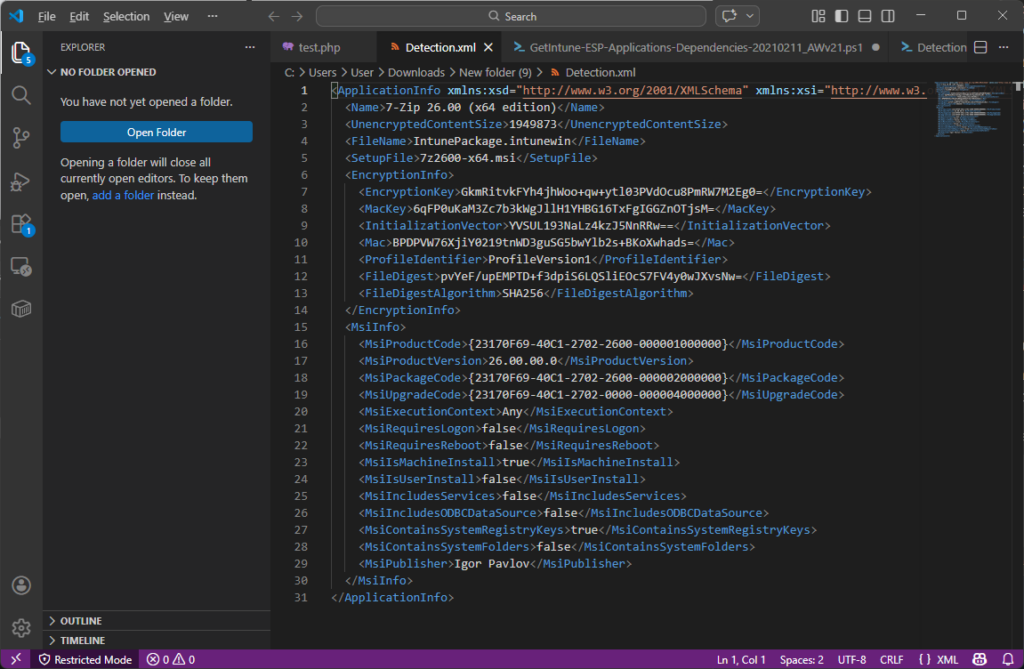
The Detection.xml file contains all of the metadata Intune needs to process the package, such as the application name, setup file, the unencrypted content size, and the EncryptionInfo block. That block contains the AES-256 encryption key, the initialization vector (IV), and the MAC key used to protect the inner archive (the second .intunewin file in the Contents folder).
The key is kept alongside the encrypted content by design because the encryption happens locally on the packaging machine, eliminating the need for Microsoft infrastructure to perform it during upload time.
When you upload the file to Intune, the service extracts the encrypted inner archive and the metadata separately, discarding the outer container. This architecture means that as long as you still have the original outer .intunewin file, you have everything you need to get your source files back.
IntuneWinAppUtilDecoder
There may be other tools out there that can help you decode your intunewin file, but the most popular one is IntuneWinAppUtilDecoder, a simple .NET utility written by Oliver Kieselbach and available on the GitHub repository.
The tool basically automates the full decryption workflow, which includes opening the outer archive, reading the EncryptionInfo from the Detection.XML, deriving the encryption key and IV, and decrypting the inner package into a .intunewin decoded file that you can then open with 7-Zip to access your original files.
To use it, simply download the executable and point it to your main .intunewin file:
IntuneWinAppUtilDecoder.exe "C:\Packages\MyApp.intunewin"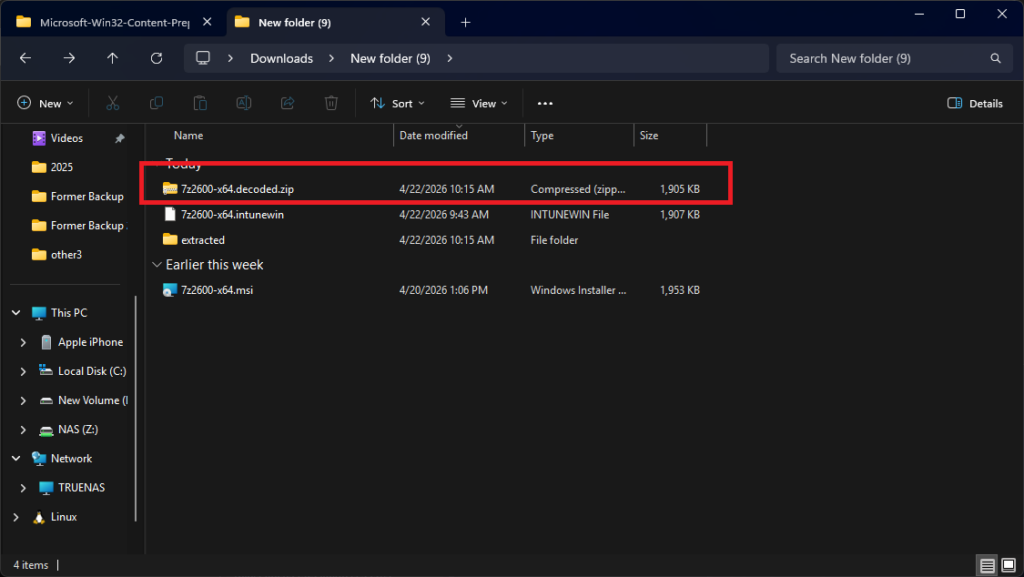
As you can see, the files are easily extracted without requiring any further inputs.
However, in some cases, you may only have the encrypted internal .intunewin file and not the Detection.xml file. In this case, you will need to manually specify the encryption info in the command line, for example:
IntuneWinAppUtilDecoder.exe "C:\Packages\Encrypted.intunewin" /key:<base64Key> /iv:<base64IV>You may be wondering, “what if I don’t have the original intunewin file? How can I get the encryption data?”
Well, for scenarios where the outer intunewin file is no longer available, you should be aware of a more advanced path. Microsoft changed the way the IME writes to its log files, so the decryption information from policy requests is no longer logged by default.
However, Oliver Kieselbach documented a workaround in a follow-up post. By changing the IME .NET trace listener configuration to set switchValue=”Verbose” and restarting the IME service, the log file resumes capturing detailed output, including the decryption information needed to decompile the package.
He also published an updated PowerShell script that automates the whole flow, including enabling verbose logging, parsing the log file, downloading the encrypted package from the Microsoft CDN and decrypting it in one pass. Oliver’s blog post contains a full walkthrough, including the updates script and decoder binary.
Conclusion
When you still have the original package, extracting the content of an .intunewin file is simple: the encryption key is bundled right alongside the encrypted content, and tools like IntuneWinAppUtilDecoder or the community’s GUI alternatives get you back to your source files in minutes.
When the outer container is gone, the path is harder but not impossible, assuming the app is still assigned in Intune and you’re willing to work with verbose IME logging.
Either way, the best insurance remains simple: always archive your original source files separately from your packaged .intunewin output.
Final Takeaways
- An .intunewin file is equivalent to a “zip” archive, so we can open the outer container with 7-Zip or another similar archive tool without any additional preparation.
- The main folder contains two key components: a Metadata folder with a Detection.xml file and a Contents folder with an encrypted .intunewin file.
- When you upload the file to Intune, the service separates the encrypted inner archive from the metadata, discarding the outer container.
- IntuneWinAppUtilDecoder automates the entire decryption workflow, including opening the outer archive, reading the EncryptionInfo from the Detection.XML, deriving the encryption key and IV, and decrypting the inner package into a .intunewin decoded file that can be opened with 7-Zip to access your original files.
- In some cases, you may only have the encrypted internal.intunewin file, rather than the Detection.xml file. To specify the encryption information, use the following command: IntuneWinAppUtilDecoder.exe “C:\Packages\Encrypted.intunewin” /key:<base64Key> /iv:<base64IV>
- If the outer intunewin file is no longer available, try this workaround: change the IME.NET trace listener configuration to set switchValue=”Verbose” and restart the IME service.