Managing third-party applications such as Google Chrome within Microsoft Intune is a common task for IT professionals.
While Chrome is relatively simple to package, maintaining consistency in deployment and ensuring reliable updates across devices can quickly become challenging without the right strategy.
How To Package Google Chrome
At first glance, Chrome packaging and deployment appear to be straightforward. However, manually managing updates can be time-consuming.
When you download the Chrome installer, you typically choose between:
- Beta or stable channel
- MSI or bundle
The MSI installer is strongly recommended for enterprise environments due to its management tools compatibility and silent deployment capabilities.
Once you’ve downloaded the appropriate MSI version of Chrome, the installation process is simple.For installing Google Chrome, you can use the following command:
msiexec.exe /i googlechromestandaloneenterprise64.msi /qn /l*v %windir%\Logs\Google_Chrome_Install.logThis command silently installs Chrome and creates a log file for troubleshooting purposes.
You can import the MSI installer directly to Intune (as Line-of-business app), or you can convert it to .intunewin first and then import it as a Win32 app.
To ensure compatibility and compliance in enterprise environments, automatic updates are frequently controlled or disabled. To disable Chrome auto-updates, you need to add the following registry keys within your package:
REG ADD "HKLM\SOFTWARE\Policies\Google\Update" /v UpdateDefault /t REG_DWORD /d 0 /f
REG ADD "HKLM\SOFTWARE\Policies\Google\Update" /v DisableAutoUpdateChecksCheckboxValue /t REG_DWORD /d 1 /f
REG ADD "HKLM\SOFTWARE\Policies\Google\Update" /v AutoUpdateCheckPeriodMinutes /t REG_DWORD /d 0 /fYou can add the above registry key from the install script or via an MST (transform file).
And that’s it. Then you need to follow the same process over and over again every time a new version is released. And here is where PacKit comes to the rescue.
Simplifying the Process with PacKit
Instead of repeating the same packaging steps for every update, PacKit allows you to streamline and standardize the entire process.
Compared to traditional manual packaging, with PacKit:
- You set it up once in PacKit and then you can reuse the install and uninstall command line
- Wrap the application installer with PSADT
- Generate the intunewin file
- Upload your package straight to Intune
All of this can be achieved through a user-friendly interface with just a few clicks, significantly reducing manual effort.
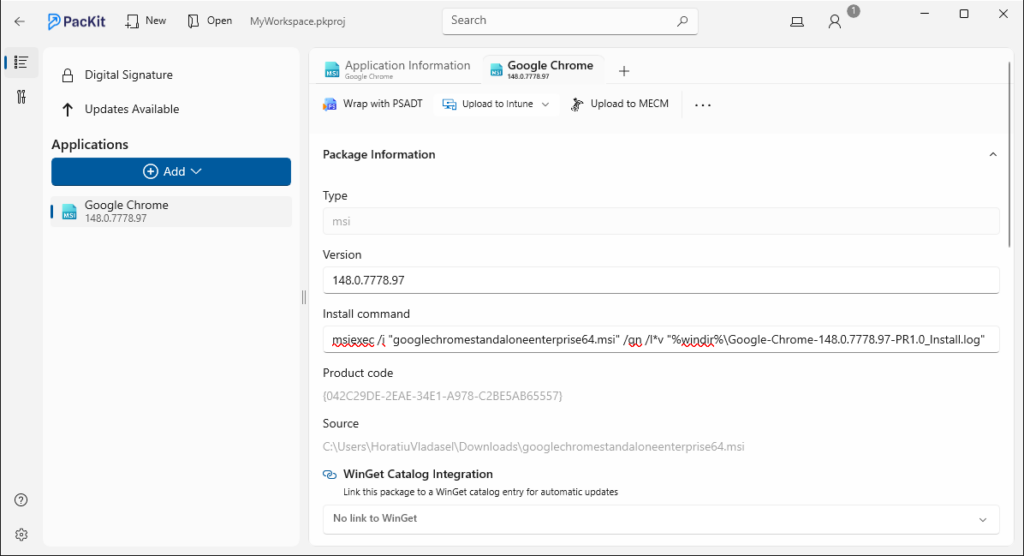
For more details about how to set up an app within PacKit, you can check out our article here.
PacKit and WinGet Integration
PacKit also integrates with Windows Package Manager, further simplifying application management.
With this integration, you can:
- Import applications directly from the WinGet repository to your workspace
- Automatically track available updates
- Receive notifications whenever new versions are released
For step-by-step instructions on how to import an app directly from the WinGet repository, you can check out our article WinGet Integration – Speed Up Your Packaging with PacKit New App Catalog
Conclusion
While packaging and deploying Google Chrome in Intune is relatively simple, maintaining it over time can become repetitive and resource-intensive.
IT teams can use tools like PacKit to:
- Reduce manual workload
- Improve consistency
- Ensure timely updates
Finally, using a more automated approach allows you to focus less on repetitive packaging tasks and more on delivering value to your environment.
Final Takeaways
- When you download the Chrome installer, you typically choose between the Beta/stable channel and MSI/bundle
- The MSI installer is highly recommended for enterprise environments due to its management tool compatibility and silent deployment capabilities
- To install, run this command: msiexec.exe /i googlechromestandaloneenterprise64.msi /qn /l*v%windir%\Logs\Google_Chrome_Install.log
- You can import the MSI installer directly into Intune (as a Line-of-Business app), or you can first convert it to .intunewin and then import it as a Win32 application
- To disable Chrome auto-updates, you must add the registry keys, which you would need to do again for each new version
- PacKit enables you to reuse the install and uninstall command line, wrap the app installer with PSADT, generate the intunewin file, and upload your package to Intune
- PacKit also integrates with WinGet, which allows you to import apps directly from the WinGet repository into your workspace, automatically track the available updates, and receive notifications for every new version.
Receive webinar invites, tutorials, and best practices from experts straight to your inbox.
Subscribe now.