mRemoteNG is a popular open-source remote connections manager that supports RDP, SSH, VNC, ICA, Telnet, and more protocols from a single interface. It is widely used by system administrators and IT professionals who manage multiple remote systems on a daily basis.
By default, mRemoteNG automatically checks for updates periodically. While this may be useful in some environments, it is best to disable this option in an enterprise environment. This is because updates are centrally managed and distributed using deployment tools such as SCCM or Intune.
In this article, we’ll walk through different methods to disable automatic update checks in mRemoteNG, including the graphical interface and configuration file approach.
Method 1: Disable Update Checks from the GUI
The easiest way to disable automatic update checks is directly from the mRemoteNG interface.
Step-by-step instructions:
1. Open mRemoteNG
2. Click on the “Tools” menu and select “Options”

3. Go to the “Updates” section and uncheck the “Check for updates on startup”
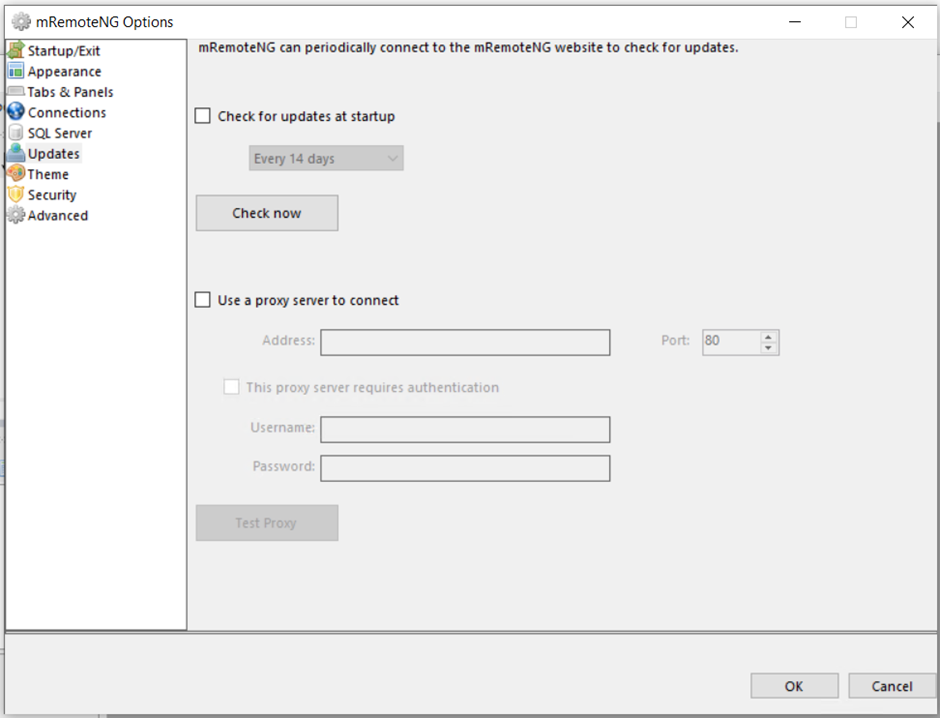
4. Click OK
That’s it. When mRemoteNG launches, it will no longer check for updates automatically.
This method is suitable for home users, but it is not very useful in an enterprise environment.
Method 2: Disable via Configuration File
The above settings are saved in the mRemoteNG.exe config file in the C:\Program Files (x86)\mRemoteNG folder.If you open the config file in Notepad and search for “CheckForUpdatesOnStartup”, you’ll notice that it’s set to “True”. To disable it, change its value to “False”.
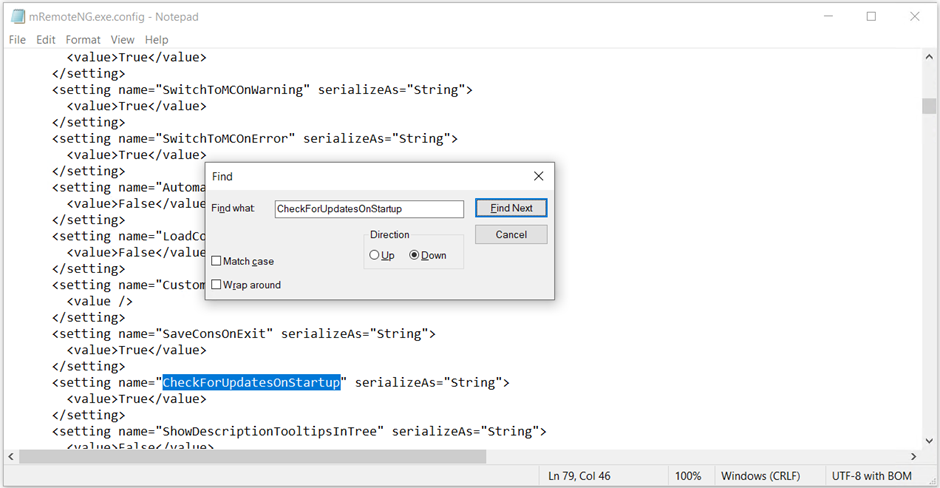
You can easily do this in Powershell by casting the content of the configuration file to [xml]
$ConfigFileContent = [xml] (Get-Content – Path "C:\Program Files (x86)\mRemoteNG\mRemoteNG.exe.config")Once loaded, you can use dot notation to access the specific element:
$ConfigFileElement = $ConfigFileContent.configuration.userSettings.’mRemoteNGSettings’.setting | Where {$_.Name -eq ‘CheckForUpdatesOnStartup’}Then change its value to False:
$ConfigFileElement.value = “False”Then save the changes:
$ConfigFileContent.Save("C:\Program Files (x86)\mRemoteNG\mRemoteNG.exe.config")So, your PowerShell script should look like this:
$ConfigFileContent = [xml] (Get-Content – Path "C:\Program Files (x86)\mRemoteNG\mRemoteNG.exe.config")

$ConfigFileElement = $ConfigFileContent.configuration.userSettings.’mRemoteNGSettings’.setting | Where {$_.Name -eq ‘CheckForUpdatesOnStartup’}

$ConfigFileElement.value = “False”

$ConfigFileContent.Save("C:\Program Files (x86)\mRemoteNG\mRemoteNG.exe.config")For more information, you can check out our article on How to Update XML Files Using PowerShell.
How to Disable Automatic Updates Settings Windows
When launched, the end-users are presented with the following windows:
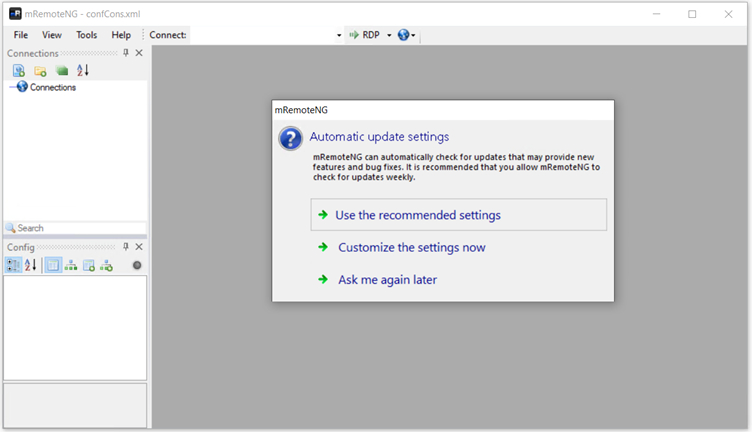
To disable this, set “CheckForUpdatesAsked” to False.
$ConfigFileElement = $ConfigFileContent.configuration.userSettings.’mRemoteNGSettings’.setting | Where {$_.Name -eq ‘CheckForUpdatesAsked’}

$ConfigFileElement.value = “True”Final Takeaways
mRemoteNG is a popular open-source remote connections manager that supports RDP, SSH, VNC, ICA, Telnet, and more protocols from a single interface.
Method 1: Disable Update Checks from the mRemoteNG GUI:
- Open mRemoteNG
- Click on the “Tools” menu and then “Options.” Go to the “Updates” section and uncheck the “Check for updates on startup” option, then click OK.
Method 2: Disable via Configuration File:
- If you open the configuration file in Notepad and search for “CheckForUpdatesOnStartup,” you’ll see that it’s set to “True.” To disable it, set the value to “False.”
How to Disable Automatic Updates Settings Windows:
- To disable this, set “CheckForUpdatesAsked” to False.
Conclusion
Disabling automatic update checks in mRemoteNG can help to maintain control, consistency, and security in managed IT environments.
While individual users can easily turn off updates through the graphical interface, enterprise administrators will benefit more from modifying the configuration file for bulk deployment and automation.
By using the best method for your environment, you can ensure that updates are handled centrally through tools such as SCCM or Intune, reducing unexpected changes and improving system stability.