
As application packaging increasingly relies on PSADT and Intune for managing and deploying application packages to devices, you should be aware of the potential issues you may encounter and how to avoid them.
In this article, I’ll go over some cases I encountered during my packaging work.
Application Fails in Autopilot
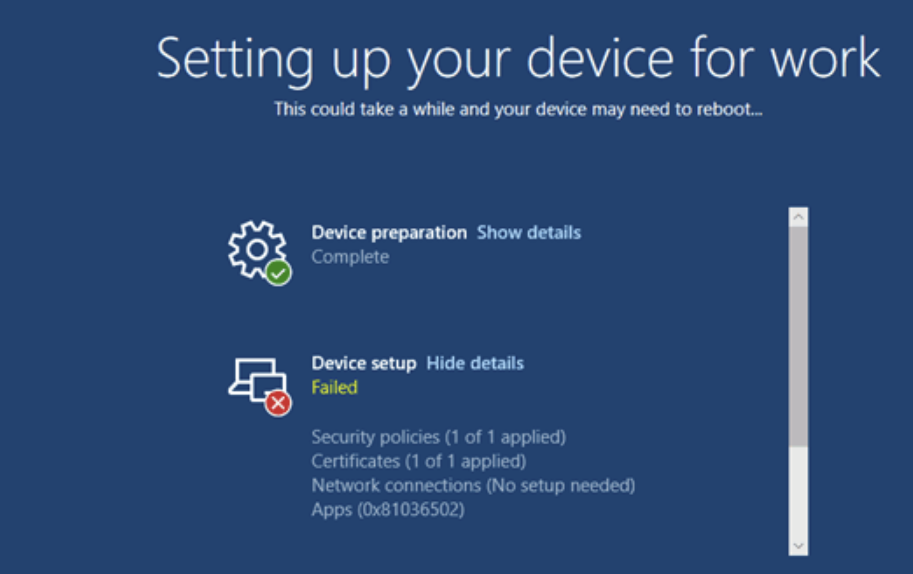
You just packaged your application, and it works fine during local tests and standard deployments, but it fails when used in Autopilot (Enrollment Status Page).
This often happens if the settings aren’t configured carefully.
Autopilot runs early in the Windows setup process, before user profiles are loaded. For this reason, if you have a PSADT script deployed per system but need to perform actions in user data or write per-user registries, it will fail.
Likewise. if your application is set in Intune in a user context, it will fail in Autopilot for the same reason. To avoid this issue, deploy your application after Autopilot completes.
Another cause for application failures during Autopilot is “user interaction.” Applications that are not silently deployed will fail during Autopilot.
The reason is the same as before: there is no user profile to interact with the display messages. Luckily, the latest 4.1.x PSADT release fixes this issue. The script logic automatically detects if it was deployed during Autopilot and automatically triggers the silent install.
Receive webinar invites, tutorials, and best practices from experts straight to your inbox.
Subscribe now.
How to Remove Previous Versions
This one is for the MSI applications that you want to remove by name. Let’s take a look at the commandlets used within PSADT:
For version v.4.1.x:
Uninstall-ADTApplication -Name 'RingCentral' -ApplicationType 'MSI'For version V 3.10.x:
Remove-MSIApplications -Name 'RingCentral'At first, everything looks fine. You install an MSI application called “RingCentral,” and want the previous version removed during the preinstall step.
However, there is a catch: these devices already have another application called “RingCentral Phone” installed. If you run the above commandlets as shown, the Intune application will also trigger the removal of the RingCentral app, leaving users without the other application.
To fix this, always use the -Exact (for v.3.10.x) and -NameMatch ‘Exact’ (for v.4.1.x) parameters. This ensures that the full name matches for the removal to work.
Reboot Handling: Intune vs. PSADT
Some applications might require a reboot after installation to work properly. As a packager, the rule is to always suppress any reboot requirement by the application installer itself, either by passing the REBOOT=ReallySuppress or /norestart parameters, depending on the type of installer.
However, this doesn’t solve the issue of the device needing to reboot for the application to work.
So, how do you handle this?
You have two options for informing users: via PSADT or Intune. Which one to choose?
In my experience, most of the clients I worked for preferred the PSADT option. Why? By the end of the installation process, you can display a message stating that the application was successfully installed and the system has to be rebooted.
This message can be customized, and you can also add a reboot button and a countdown. And it includes all of the client’s branding.
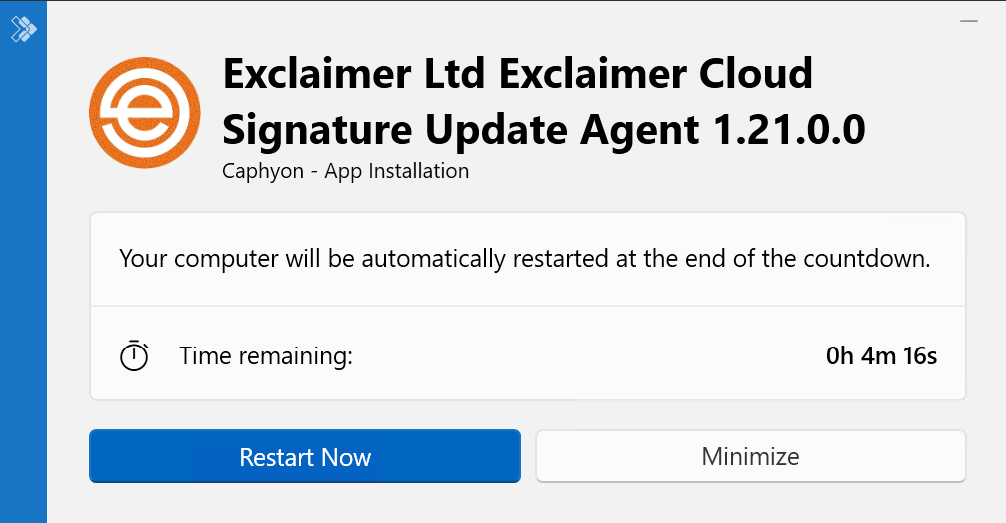
The cmdlet to use in a PSADT v4.1.x is:
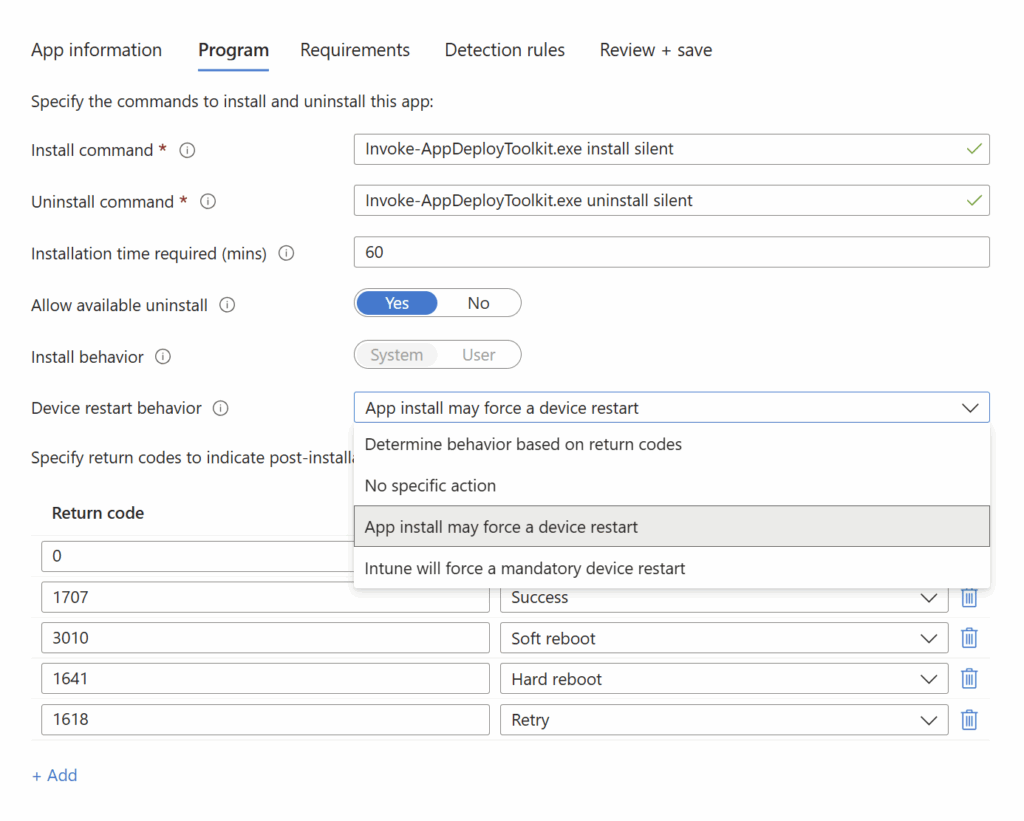
Show-ADTInstallationRestartPrompt.The Intune built-in reboot function is used in two places:
- When defining the application program.
- When you select the deployment group and play around with the settings.
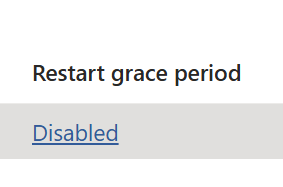
It doesn’t offer a customizable message, and on top of that, with all the settings you need to configure, it might be confusing. Be careful so you don’t end up with a forced reboot. You don’t want to restart a machine while a user is working, as the progress could be lost.
Misconfigure Logging
Unless defined in the configuration file, PSADT applications deployed through Intune will always generate a default install/uninstall log in the following location: “C:\Windows\Logs\Software”. This is the main PSADT log, and it does not explain why a setup .exe or .msi application called by the script failed. There is only an exit code, which is usually a generic one.
Luckily, MSI applications called via PSADT will automatically generate a separate install log in the same folder location. However, setup.exe applications do not. As a result, it is better to learn which is the logging parameter for your setup.exe installer and include it in the PSADT cmdlet as an additional parameter.
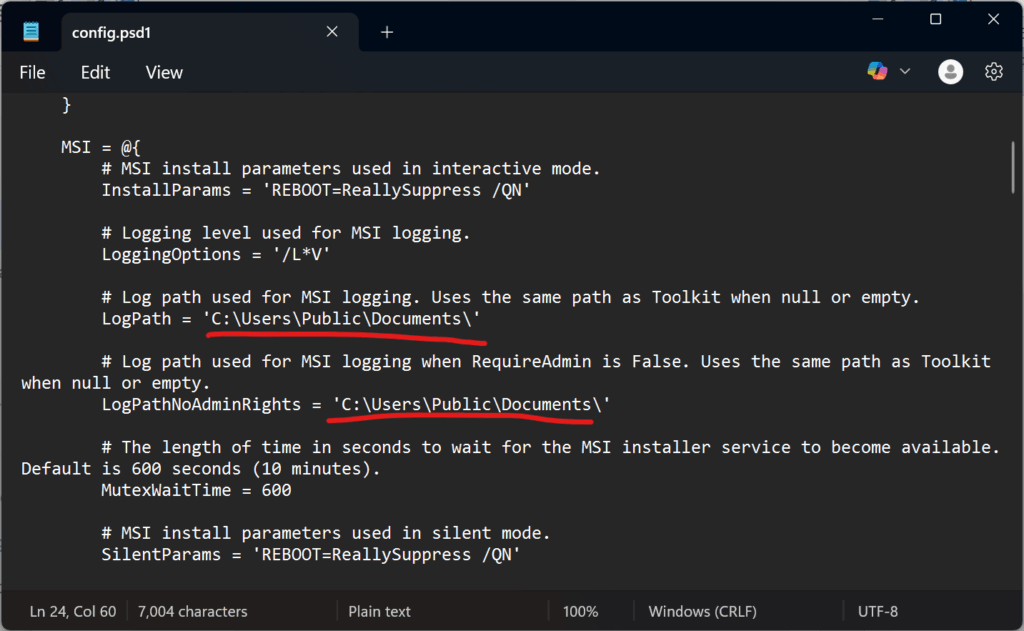
However, be careful when you deploy applications in system context and use cmdlets to execute processes as a user, such as Start-ADTMsiProcessAsUser or Start-ADTProcessAsUser, if you want to install a per-user MSI (ALLUSERS=2). When installing or uninstalling an MSI in PSADT v4.1.x, you can receive an error. Investigating the logs will give you a hint that the logging cannot be done due to permissions. Why is this happening? Even if you execute the MSI as a user, the PSADT is executed in the system context, so by default, the MSI logging parameters are in a “system” – “admin” location.
To fix this, either modify the config.ps.1 file as shown below, or pass the -argument to explicitly override the default log location.
Improper Install Context Testing
This may sound simple, but I’ve seen a lot of cases where packages open a CMD as admin and call the PSADT script from there. While this might work locally and then be deployed via Intune, there are times when Intune deployment fails, or it installs the application improperly.
For example, you have an application that, by default, will install only for the user who is currently logged in. By installing the app via CMD as admin, it will be installed in the user’s profile.
However, Intune will see the PSADT application as a system. So you will end up having an application installed in a different location. During your initial tests, you should see icons on the desktop or in the start menu, but not on the app installed from Intune.
To avoid this issue, always run local tests of PSADT scripts through PSTOOLS using the psexec command.
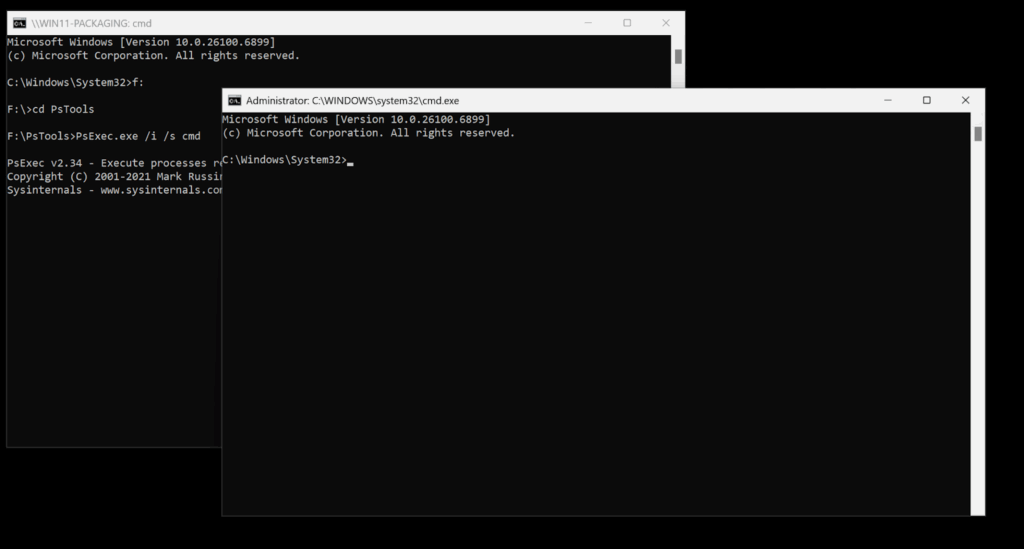
This is the closest simulation of Intune’s installation context available. I say the “closest” because Intune uses a “special” system context where user interaction is disabled by default.
If you are using an older version of PSADT other than v4.1.x, you will notice that applications installed via PSTools display user interaction messages, but the application deployed via Intune will not.
A workaround is to call the PSADT script via ServiceUI.exe, but as I mentioned before, ServiceUI is automatically included in the latest version. This means I can simply use Invoke-AppDeployToolkit.exe both from PsTools and Intune, and the behavior will be the same.
Final Takeaways
- Autopilot behaves differently than a normal Windows session because no user profile exists yet, so anything requiring user data, UI prompts, or user-context installation will fail unless handled properly or delayed until after Autopilot.
- When removing older versions of an app, always match the name exactly. Otherwise, PSADT may accidentally uninstall similarly named applications, which can break user environments.
- Reboot handling needs planning: Intune can trigger a reboot, but most packagers prefer using PSADT because it allows branded, user-friendly messages and avoids unexpected forced restarts.
- Logs are essential for troubleshooting: PSADT creates basic logs, but EXE installers may need custom logging parameters, especially when switching between user and system context.
- Always test in the correct context: running scripts locally as admin does not reflect how Intune installs apps. Use PsExec or PSExec-like testing to simulate real deployment behavior.
Conclusion
If you understand how context, user interaction, logging, and uninstall logic behave in Intune deployments, you’ll avoid most packaging pitfalls. Take your time to test properly and apply these checks early, this will save hours of troubleshooting later.
Receive webinar invites, tutorials, and best practices from experts straight to your inbox.
Subscribe now.