When working as an IT administrator, chances are you will encounter a scenario where you need to install an application in your environment or update an existing one.
In Windows, deploying MSI and MSIX packages is quite straightforward, since these formats follow strict application packaging guidelines and adhere to Microsoft-designed standards.
For example, if you want to silently install an MSI package, you have multiple options to choose from:
- /QB – Displays the installation progress bar and also allows the user to cancel the installation.
- /QB! – Displays the installation progress bar, but doesn’t give the user the possibility to cancel the installation.
- /QN – Runs the installation completely silently, and the user won’t see anything on the screen.
However, with EXE packages, it’s a completely different story.
In this article, we’ll explore how EXE packages behave within an infrastructure, and we’ll also look at some websites and tools that can help you identify or keep track of silent switches for EXE packages.
How to Implement EXE Silent Switches in Your Applications
We already have an article on our Advanced Installer blog that explains in more detail how to find silent install switches for EXE packages.
However, I’d like to point out that EXE packages generally do not follow certain application packaging guidelines.
There are multiple tools available for creating EXE installers, including Advanced Installer.
Typically, EXE packages use the following parameters when it comes to silent switches:
- /s
- /silent
If these parameters do not work for your EXE package, you can try to see if the EXE packages come with built-in help by running one of the following commands:
- “Mysetup.exe” /help
- “Mysetup.exe” /?
Keep in mind that this is not a defined standard, and each ISV can define its own silent parameters, help switches, or any other type of switches that can be added to a package.
If you’re new to Advanced Installer, you can give it a try through our 30-day free trial.
Website for Silent Install Switches
Simply search Google for “silently install” and your application name, and you will likely find a lot of information to help you out.
Many applications have dedicated websites from their vendors.
Vendors usually provide some sort of documentation or information about whether there are any silent switches available for the application you wish to package and deploy in your infrastructure.
Silent install HQ is an amazing website that keeps track of many silent switches.
What’s cool about Silent Install HQ is that they not only provide you with the silent install switch of a certain application but also the PowerShell App Deployment Toolkit script for installing and uninstalling that application, making your job much easier.
I truly recommend you check them out.
Managing Installation and Uninstallation Parameters with PacKit
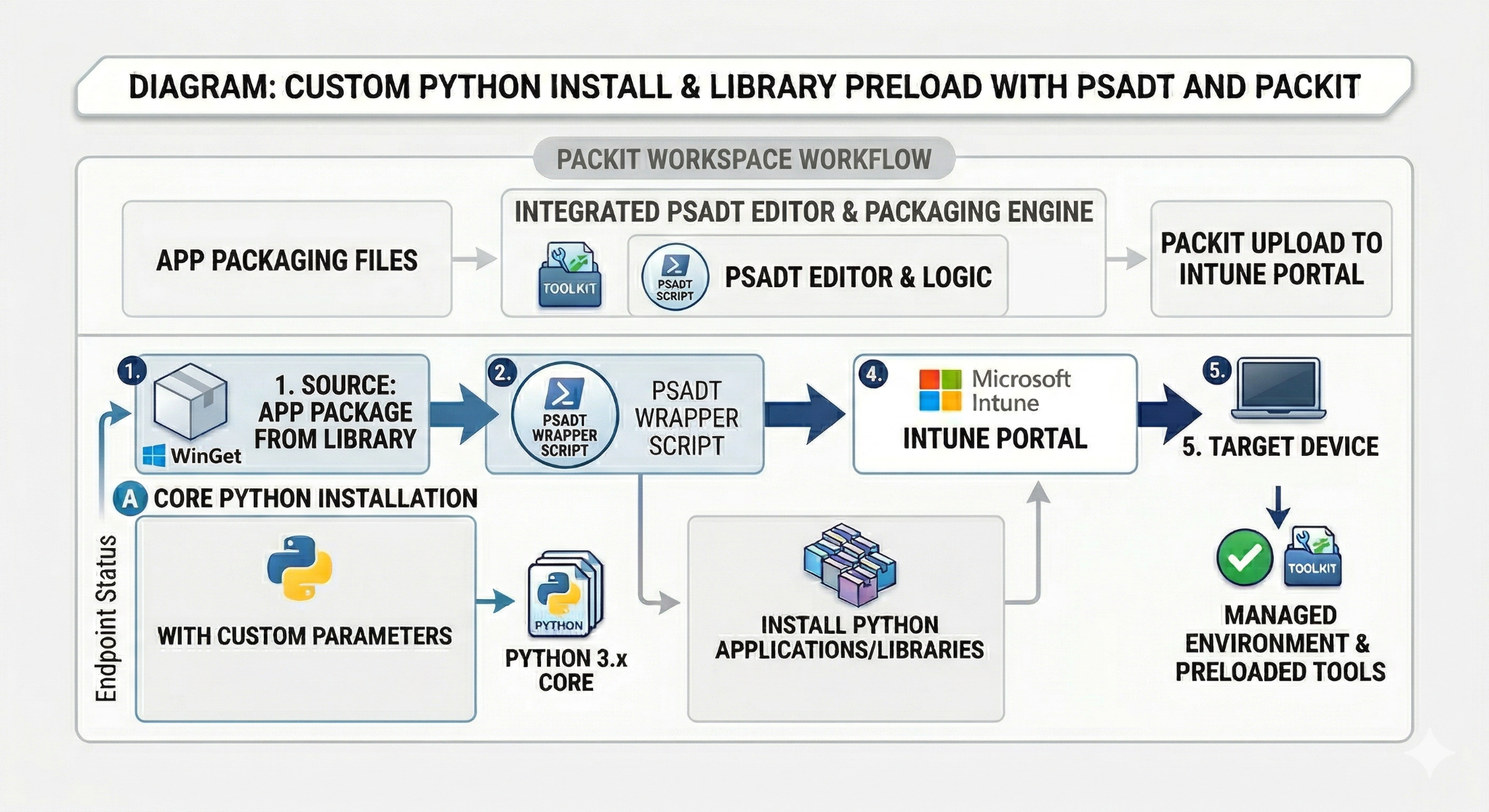
PacKit is not just a repository from which you can simply search for silent install switches or other parameters that applications might have. Instead, it provides a centralized application packaging workspace designed to help IT teams document, discover, and manage installation and uninstallation parameters across their entire environment.
Here are the two key features PacKit offers to help you simplify this process:
- A workspace where you can keep track of all your information for your packages. This workspace can be shared with multiple people across your entire organization.
- An active integration with WinGet, which allows you to search the WinGet repository for your specific applications. If the application is found, you can access all the information from the repository, including installation and uninstallation command lines. You can then import that application into your workspace, and you’ll always have this type of information available throughout your infrastructure.
At first glance, PacKit may not seem like your go-to tool for silent install switches.
However, once you implement PacKit in your infrastructure and begin using it daily with WinGet applications and custom applications added to your workspaces, it becomes your essential tool for finding any type of information about your application installation parameters.
Download and try PacKit for free. Explore its full range of features, including shared workspaces and WinGet integration, to see how it can streamline your workflows.
Conclusion
Managing application installations as an IT administrator often involves dealing with both MSI/MSIX and EXE packages.
While MSI and MSIX follow strict standards and offer predictable silent install options, EXE packages are far less consistent and require more effort to handle silently.
Tools like Silent Install HQ and resources like vendor documentation can help identify the right switches, but there’s no universal rule.
To streamline this process, platforms like PacKit offer a centralized workspace and WinGet integration, making it easier to track and manage installation parameters across your organization. With the right tools and a bit of research, even the most unpredictable EXE installers can be handled efficiently.